
First month for free!
Get started
Published 1/9/2026
If you've ever needed to turn an MP3 file into text, you know the old way was a real grind. The modern solution? A speech-to-text API. This approach automates the whole process, giving you fast, accurate transcriptions that are miles better than typing it all out by hand. You can literally turn hours of audio into a neat, searchable document in minutes. And with tools like Lemonfox.ai now on the scene, this is something any developer can get up and running quickly.
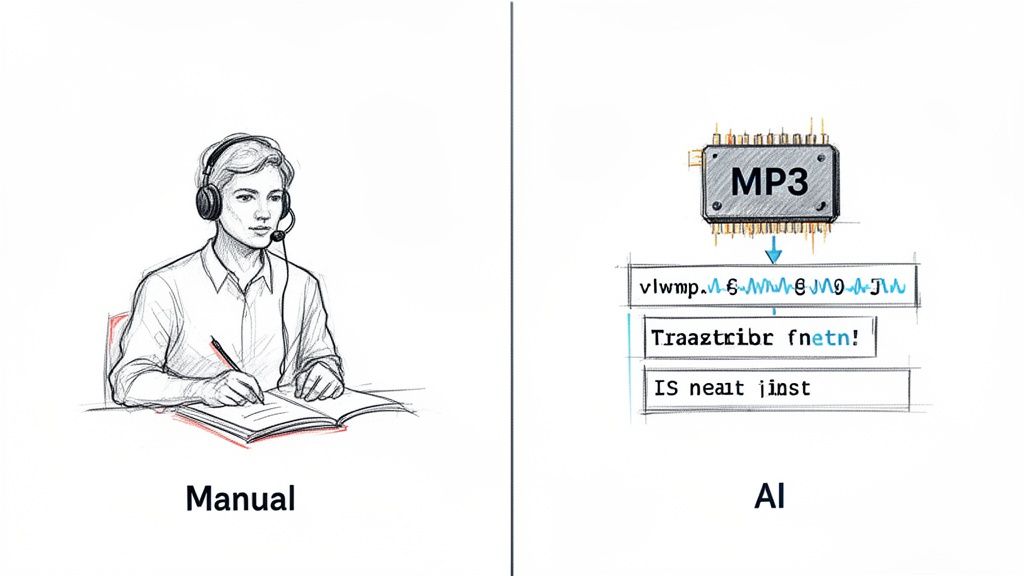
I still remember the days of staring down a pile of interview recordings, knowing it meant hours of tedious, manual transcription. That slow, expensive process is thankfully becoming a thing of the past. Today, AI has completely changed the game, turning what used to be a multi-day slog into a simple, automated task that’s done in minutes.
The jump from human typists to accessible speech-to-text APIs isn't just a minor improvement—it's a massive shift in how we think about cost and efficiency. It wasn't that long ago that businesses had to rely on transcription services with turnaround times measured in days and costs that could easily climb over several dollars per minute of audio.
The change has been stunning. In less than two decades, transcription went from being a premium, human-driven service to a mainstream AI workflow. Back in 2005, a human typist would charge anywhere from $1.00 to $3.00 per audio minute. Compare that to today, where AI APIs can process the same audio for pennies on the dollar.
This dramatic drop in cost has lit a fire under the market. The global speech-to-text API market was already valued at $2.77 billion in 2023 and is on track to hit $9.86 billion by 2032. This incredible growth shows that automated MP3-to-text isn't just a niche tool anymore; it's a fundamental data source for businesses. For developers, this means that what was once a pricey, slow service is now a fast, affordable, API-driven tool you can build directly into your own products. You can read more about the growth of the speech-to-text market to see just how big this has become.
The evolution is crystal clear: what once took a significant budget and a lot of patience is now an affordable, on-demand capability. The cost difference is often more than 10x, with providers like Lemonfox.ai offering rates below $0.17 per hour.
This guide is all about giving you a practical, no-fluff path to building your own transcription solution. I’m going to walk you through exactly how to use a modern tool—the Lemonfox.ai API—to create a powerful MP3-to-text pipeline in your own projects.
Here's what you'll learn:
By the time you're done, you’ll have the know-how to build a working transcription system yourself. Let's get started.
Before you even think about sending an audio file to a transcription service, you need to deal with the source material itself. The old programmer's mantra, "garbage in, garbage out," couldn't be more true here. Honestly, a clean, well-prepared audio file will do more for transcription accuracy than just about anything else—often even more than the specific API you choose.
A lot of people just upload their MP3 and hope for the best, but that's a recipe for a messy transcript. Taking just a few minutes to prep the file can make a world of difference, saving you hours of painful manual corrections down the road. And don't worry, you don't need to be an audio engineer; these are simple tweaks you can make with free software.
First thing's first: if your audio is in stereo, convert it to a single mono channel. This is probably the most important step. Stereo is fantastic for music, but for transcription, it's a liability. An AI model is designed to listen to one stream of audio, but a stereo file gives it two (a left and a right channel).
This is where things get weird. If one speaker is slightly louder on the left and another is on the right, the AI gets confused trying to process two competing signals. It might drop words or even mangle entire sentences. By merging both channels into a single mono track, you give the transcription engine one clean, unified signal to work with. It's a simple change with a huge payoff.
Next up is the sample rate. You might see audio recorded at high sample rates like 48kHz or even 96kHz, but for transcribing speech, that's complete overkill. Most speech-to-text models, including the ones at Lemonfox.ai, are fine-tuned for a 16kHz (or 16,000 Hz) sample rate.
Why? Because 16kHz perfectly captures the frequencies of the human voice without bogging down the file with extra high-frequency data. Sending a file with a higher sample rate won't make the transcript better; the API is just going to downsample it on its end anyway. By setting it to 16kHz yourself, you’re just making sure the file is already in the sweet spot. You might need to convert your audio to hit these settings, and there are plenty of free audio converter tools online that can handle this in a few clicks.
Ever tried to listen to a recording where one person is practically shouting and the next is whispering? That's a nightmare for transcription software. An API can easily miss the quiet parts or get thrown off by the sudden loud spikes.
The fix for this is volume normalization. This is a standard audio-editing feature that scans your entire file and adjusts it to a consistent average level. It boosts the quiet parts and tones down the loud ones, resulting in a much more balanced track that the AI can interpret reliably. No more missed words just because someone was speaking too softly.
Finally, do what you can to minimize background noise. You don't need a pristine, studio-quality recording, but even small distractions can throw off an AI. That low hum from an air conditioner, a distant car horn, or even someone typing in the background can be mistaken for speech, leaving you with gibberish in your transcript.
A clean signal is a predictable signal. Every bit of noise you remove is one less variable the transcription model has to guess at, directly translating to higher accuracy.
You can use a free tool like Audacity to apply a simple noise reduction filter. The key here is to be gentle. If you get too aggressive with it, you can distort the actual voices, which makes things even worse. A light touch to get rid of a consistent background hiss or hum is all you need to give the AI a much cleaner signal to analyze.
By taking care of these four things—converting to mono, standardizing to 16kHz, normalizing volume, and reducing noise—you're setting up your transcription API for success and giving yourself the best shot at a flawless transcript.
With your MP3 file prepped and ready to go, you've hit a critical fork in the road: picking the right engine to handle the transcription. This isn't a minor detail—the speech-to-text API you choose will directly define your project's accuracy, speed, and budget. The market is crowded, offering everything from massive cloud platforms to nimble, specialized services.
It helps to think of it like this: you wouldn't use a giant industrial engine for a small passenger car. It’s overkill and wildly inefficient. In the same way, a hyperscaler's API might come with a sprawling ecosystem, but a focused provider like Lemonfox.ai can often deliver more bang for your buck with features specifically tuned for transcription.
Every API provider on the planet will claim high accuracy, but that number is rarely as simple as it seems. Real-world accuracy depends entirely on your specific audio. A model trained on clean, American English news reports might completely fall apart when faced with a technical discussion between two Scottish engineers.
The only way to find out what works for you is to test it yourself. Don't take marketing claims at face value. Sign up for a few free trials and run your own head-to-head bake-off using audio that’s typical for your project.
Performance is another two-sided coin you need to examine closely.
When you start transcribing audio at scale, the costs can sneak up on you. Most APIs use either a pay-as-you-go model or tiered subscriptions. For most projects, especially those with unpredictable volume, a straightforward per-minute or per-hour rate is the most transparent and effective way to manage your budget.
This is another area where specialized providers often have an edge. While the big platforms can have confusing pricing tiers, services like Lemonfox.ai keep it simple with incredibly competitive rates, often dropping below $0.17 per hour. That makes even high-volume transcription work surprisingly affordable.
Before you send that file off, though, a quick check on your audio prep is always a good idea. This flowchart is a handy reminder of the basics.
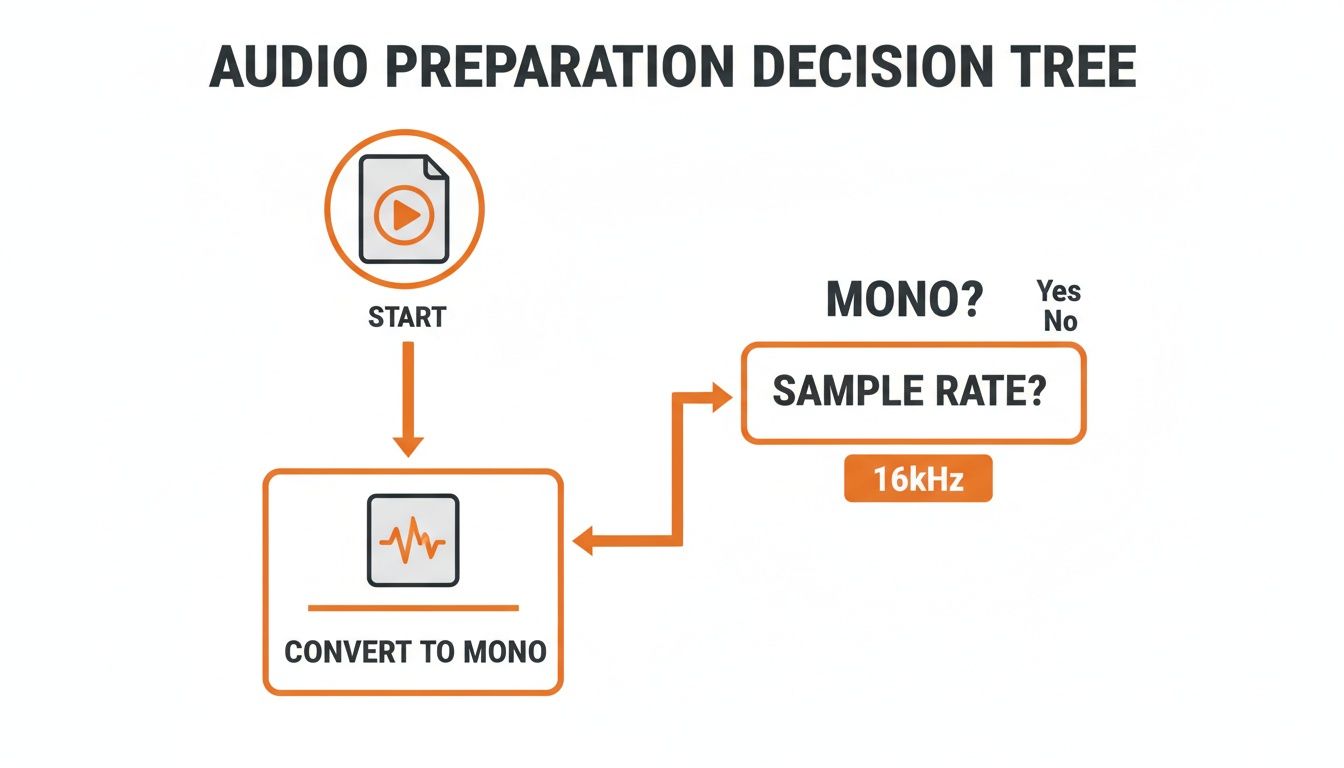
Remember, even the most advanced AI will struggle if you feed it poorly formatted audio. Getting this step right is half the battle.
To help you sift through the options, I’ve put together a quick comparison table outlining the key features to look for when evaluating an API.
| Feature | What to Look For | Why It Matters for Your Project |
|---|---|---|
| Accuracy | Test results with your own audio samples (accents, background noise, jargon). | Marketing benchmarks are often based on ideal, clean audio. Your real-world results will almost certainly differ. |
| Cost Structure | Transparent per-minute/per-hour pricing vs. complex subscription tiers. | Simple pricing prevents surprise bills and is easier to scale. Pay-as-you-go is best for fluctuating or unpredictable usage. |
| Speaker Diarization | The ability to automatically label who said what (e.g., "Speaker 1," "Speaker 2"). | Absolutely essential for transcribing interviews, meetings, or podcasts. It makes the final transcript readable and useful. |
| Multi-Language | Broad and accurate support for all languages and dialects you expect to encounter. | Don't assume "English" support covers all accents. If you work with global audio, this is a make-or-break feature. |
| Data Privacy | A clear policy stating data is deleted immediately after processing. EU-based servers for GDPR. | You are entrusting a third party with potentially sensitive data. Ensure they have a zero-retention policy. |
| Speed & Latency | Fast batch processing times for large files and low latency for real-time streams. | Choose based on your needs: speed for archives, low latency for live applications like captioning or voice commands. |
This table isn't exhaustive, but it covers the core considerations that will guide you to the right solution for your specific needs.
Beyond the core metrics, a few key features can make or break your project. Multi-language support is table stakes if you’re dealing with any kind of global content. But the real game-changer is often speaker diarization—the API’s ability to identify and label each person speaking. This single feature transforms a messy wall of text into a structured, coherent conversation, which is invaluable for interviews or meetings.
Finally, let's talk about privacy. This is non-negotiable. When you send an audio file to an API, you need to know what happens to it. Look for providers with an ironclad privacy policy that guarantees your data is deleted right after processing. For anyone working under GDPR, using a provider with EU-based endpoints is a must for compliance.
The demand for these tools is exploding. The global speech recognition market was valued at US$12.63 billion in 2023 and is projected to hit an incredible US$92.08 billion by 2032. This growth is fueled by the demand for the very features we've been discussing.
While this guide is focused on MP3s, the same principles apply when you're looking for the best software for transcribing video. Taking the time to choose the right API from the start will save you countless headaches down the line.
Alright, let's get our hands dirty and build a practical Python script to turn that MP3 into text. We'll be using the Lemonfox.ai API for this. It's surprisingly simple, and by the end of this, you’ll have a working piece of code you can tweak for your own projects.
We're going to start from scratch. All you need is a basic Python setup and an MP3 file ready to go. I’ll walk you through getting a free API key, installing the one library we need, and writing the script to upload your audio and pull down the transcript. We'll even flip on speaker diarization to show you how easy it is to add powerful features.
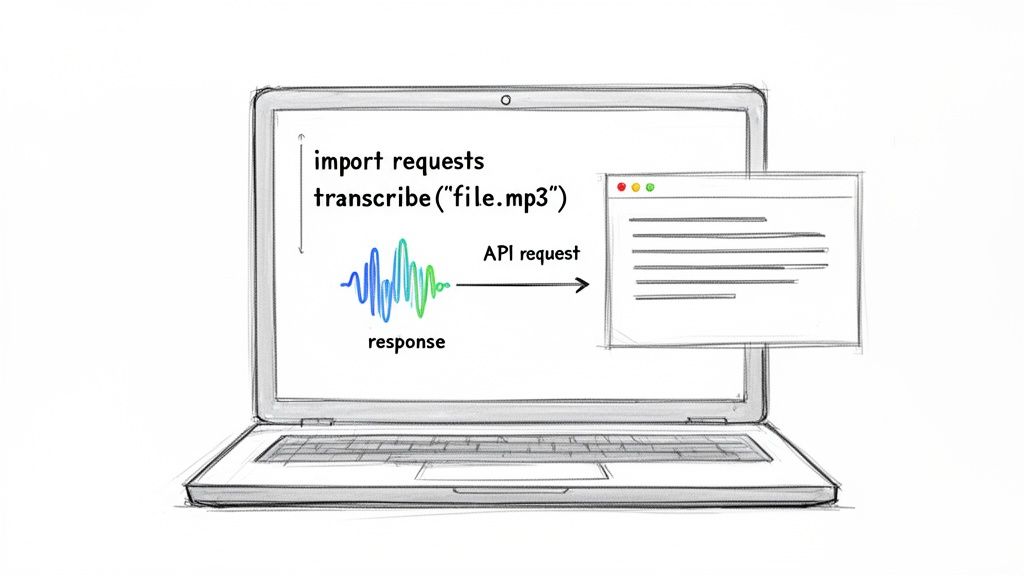
Before we can talk to the API, we need two things: the Python requests library and a personal API key from Lemonfox.ai. If you've ever worked with APIs in Python, you've probably used requests—it’s the go-to tool for making HTTP requests and simplifies the whole process.
If you don't have it installed, just open your terminal and run this command:
pip install requests
Easy. Next up is the API key, which is just how Lemonfox.ai knows it's you. You can grab one by signing up for their free trial. They’re pretty generous, offering 30 hours of transcription for your first month, which is more than enough to play around with this guide and test your own files.
Once you have the key, copy it somewhere safe. We're about to use it.
Let's start coding. The best way to tackle this is to break the script into a few logical chunks: setting up our connection details, sending the file, and then handling the transcript that comes back. This keeps the code clean and easy to follow.
First, we'll import requests and define our API endpoint and key. Pro tip: in a real project, you'd store your API key as an environment variable instead of putting it directly in the script. For this tutorial, though, we'll just assign it to a variable to keep things simple.
Here’s the initial setup:
import requests
API_KEY = "YOUR_LEMONFOX_API_KEY"
TRANSCRIPTION_URL = "https://api.lemonfox.ai/v1/audio/transcriptions/"
Just be sure to swap "YOUR_LEMONFOX_API_KEY" with the real key you got from your Lemonfox.ai account.
With our credentials ready, the next step is to prepare the MP3 file for upload. The Lemonfox.ai API expects the audio as multipart/form-data, which is just a standard way to send files via HTTP. Thankfully, requests makes this a breeze.
We need to tell our script where to find the MP3 file. We also need to define any special instructions for the transcription job. This is where we can enable features like speaker diarization, which tells the API to figure out who is speaking and when.
Let’s add the code to open the file and configure our request. We'll assume the MP3 is called meeting_audio.mp3 and it’s sitting in the same folder as our Python script.
audio_file_path = "meeting_audio.mp3"
with open(audio_file_path, "rb") as audio_file:
# Prepare the headers for authentication
headers = {
"Authorization": f"Bearer {API_KEY}"
}
# Prepare the data payload, including enabling speaker diarization
data = {
    "diarize": "true"  # Set to "true" to enable speaker recognition
}

# Prepare the file for uploading
files = {
    "file": (audio_file_path, audio_file, "audio/mpeg")
}

# Make the POST request to the API
response = requests.post(TRANSCRIPTION_URL, headers=headers, data=data, files=files)
A Quick Tip: See that
diarizeparameter in thedatadictionary? Just setting it to"true"is all it takes to activate speaker recognition. That one line turns a flat wall of text into a structured, easy-to-read conversation.
This block of code handles the heavy lifting: it opens the MP3, sets up the security header with your API key, tells the API to identify the different speakers, and then sends the whole package off to the Lemonfox.ai endpoint.
After the API works its magic on your audio, it sends back a JSON object containing your transcript. Good practice is to always check the response status before you do anything with the data. A status code of 200 means "OK," and we're good to go.
Let’s add the final piece of the puzzle to our script. This part will handle the response and print out the text.
if response.status_code == 200:
# Parse the JSON response
result = response.json()
# Print the full transcript
print("Full Transcript:")
print(result['text'])

# If diarization was enabled, print the speaker-segmented text
if 'words' in result and result['words']:
    print("\n--- Speaker Diarization ---")
    current_speaker = None
    speaker_text = ""
    for word_info in result['words']:
        speaker = word_info.get('speaker', 'Unknown')
        if speaker != current_speaker:
            if current_speaker is not None:
                print(f"Speaker {current_speaker}: {speaker_text.strip()}")
            current_speaker = speaker
            speaker_text = ""
        speaker_text += word_info['word'] + " "

    # Print the last speaker's text
    if current_speaker is not None:
        print(f"Speaker {current_speaker}: {speaker_text.strip()}")
else:
# Print an error message if something went wrong
print(f"Error: {response.status_code}")
print(response.text)
This final block confirms the request was a success. It starts by printing the complete transcript as one continuous block of text. Then, it dives into the more detailed words data to rebuild the conversation, neatly labeling each part with "Speaker 1," "Speaker 2," and so on.
And that's it! In just a handful of Python lines, you’ve built a powerful tool to convert any MP3 file to text, complete with speaker labels. This script is a fantastic launchpad for building more complex audio processing applications.
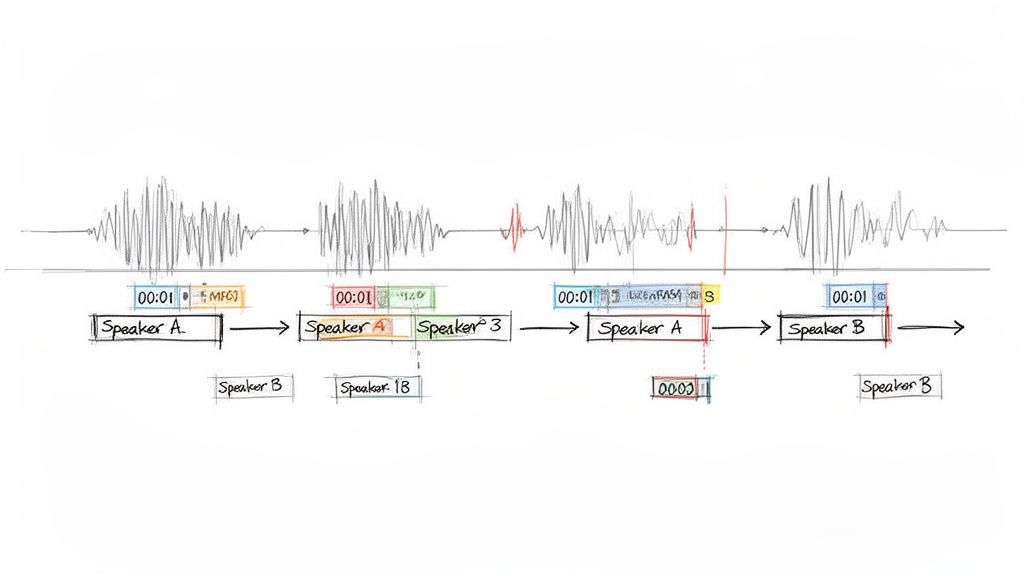
Getting a basic transcript is a great first step, but the real magic happens when you start using advanced features to handle the messiness of real-world audio. We're talking about long recordings, jargon-filled discussions, and conversations with multiple people interrupting each other.
This is where you graduate from just pulling raw text to working with the rich metadata that a service like Lemonfox.ai provides. Let’s dive into the techniques that separate a basic script from a professional-grade audio processing pipeline.
So, what do you do when you need to convert a mp3 audio file to text that’s a two-hour-long podcast or a three-hour meeting? Trying to upload a massive file in a single API request is a recipe for disaster. You're just asking for network timeouts, failed uploads, and wasted processing time.
The smart, reliable approach is chunking.
The idea is straightforward: instead of sending the whole file at once, you break it into smaller, more manageable pieces—maybe 10 to 15 minutes each. You then process these chunks individually. This method is a game-changer for a few reasons:
Once all the chunks are transcribed, you just stitch the text outputs back together in the right order. It's a little extra logic upfront, but the payoff in stability and speed is huge.
Out-of-the-box transcription models are fantastic for everyday language, but they can get tripped up by specialized vocabulary. If your audio is packed with medical terms, legal phrases, or internal company acronyms, you might see some strange and unhelpful interpretations.
A powerful, and surprisingly simple, solution is to build a post-processing script. You can create a custom dictionary of your specific terms and their common misinterpretations. After the API returns the initial transcript, your script runs a "find and replace" to clean things up. For instance, if the AI consistently hears "aneurysm" as "and your ism," your script can automatically correct it every time.
Building a simple post-processing layer is like giving your transcription pipeline a custom vocabulary for your specific domain. You can dramatically boost accuracy for specialized content without having to retrain the underlying AI model.
This gives you direct control over the final output, ensuring that critical, industry-specific language is always captured correctly.
The raw text is just the beginning. The JSON output from a modern transcription API is loaded with valuable metadata that lets you build truly sophisticated features. Let’s look at two of the most useful pieces of data.
Word-Level Timestamps: The API can tell you the exact start and end time of every single word. This is incredibly powerful. You can build interactive transcripts where clicking a word jumps the audio player to that exact spot. It's also the secret sauce for creating perfectly synchronized captions and subtitles.
Speaker Labels: As we saw in our Python example, enabling speaker diarization adds a speaker tag to each word. This is the key to making sense of conversations. You can figure out who spoke when, calculate each person’s total speaking time, or just format the transcript into a clean, easy-to-read script.
By parsing this rich JSON instead of just grabbing the plain text, you can elevate your project from a simple transcription tool to a powerful audio intelligence platform. This is how you really get the most out of any MP3 to text workflow.
Even with the best tools, you're bound to have questions when you first start turning MP3 files into text. Let's walk through some of the most common things people ask, so you can get your workflow ironed out from the get-go.
Accuracy is everything, and frankly, it starts with the audio itself—long before you ever make an API call. A clean audio signal is the single most important factor. If you can, minimize background noise and make sure people aren't talking over each other.
On the technical side, a little prep work on the file goes a long way.
If you’re transcribing something with a lot of niche terminology—think medical lectures or legal depositions—an extra step can make a huge difference. A simple post-processing script that does a "find and replace" for specific jargon can catch terms the AI might have misunderstood, adding that final polish.
Simply put, speaker diarization answers the question, "Who said what?" Instead of getting back one giant block of text, the API identifies and labels each person speaking (e.g., "Speaker 1," "Speaker 2").
You’ll want to flip this feature on anytime you're dealing with more than one person and need to know who’s talking. It's a must-have for transcribing things like:
Without it, you're left with a confusing mess. Thankfully, APIs like Lemonfox.ai make it as simple as adding a parameter to your request, turning a chaotic conversation into a clean, readable script.
You bet. Data privacy should be top of mind, especially if your audio contains sensitive information. Anytime you send a file to a third-party service, you’re placing your trust in their hands.
Always go with a provider that has a rock-solid, transparent privacy policy. Look for a clear zero-retention policy, which guarantees your audio and transcripts are wiped from their servers as soon as the job is done.
For businesses that fall under regulations like GDPR, using an API with EU-based endpoints is absolutely essential for staying compliant. Don't just assume your data is handled properly; do your homework. The best services build their platforms around privacy from day one.
The price to convert mp3 audio file to text is all over the map. On the high end, you have traditional human transcription services, which can easily cost $60 per hour of audio and sometimes much more.
The big cloud providers are cheaper, but their pricing models can be a real headache, making it hard to predict your costs. The good news is that specialized API-first companies have really shaken things up. Services like Lemonfox.ai have brought prices way down, with rates falling below $0.17 per hour.
When you're shopping around, always compare the effective per-hour rate and keep an eye out for any hidden costs or subscription requirements.
Ready to build your own powerful and surprisingly affordable transcription tool? Sign up for a free trial with Lemonfox.ai and get 30 hours of transcription to put everything you've learned here to the test. https://www.lemonfox.ai