
First month for free!
Get started
Published 12/5/2025
Yes, you absolutely can get high-quality transcripts from your audio files for free. The trick is knowing which tool to reach for, and that really comes down to what you value most for a specific project.
Are you dealing with sensitive information? Go with a local open-source model. Just need something quick and dirty? A browser-based tool is your best bet. Need the absolute best accuracy you can get for free? That's where free API trials shine.
Not too long ago, turning audio into text meant either hours of painful manual typing or paying for a pricey service. Thankfully, modern AI has completely changed the game. Now, anyone can get surprisingly accurate transcripts for free, which is a huge deal for students, podcasters, researchers, and just about anyone who works with audio.
This isn't a niche thing, either. The AI transcription market is exploding—it's expected to jump from $4.5 billion in 2024 to over $19.2 billion by 2034. That incredible growth shows just how vital these tools have become for making audio content searchable, accessible, and useful. You can dig into a full market analysis to see the trends driving this.
So, where do you start? The first step is to think about your specific needs. Are you transcribing a confidential client call, a quick personal voice note, or a crucial interview that needs to be perfect? Your answer will immediately point you in the right direction.
It's all a balancing act between privacy, speed, and quality.
This chart lays out the decision-making process pretty clearly. It's all about figuring out if your priority is keeping your data private, getting a transcript instantly, or squeezing out every last drop of accuracy.
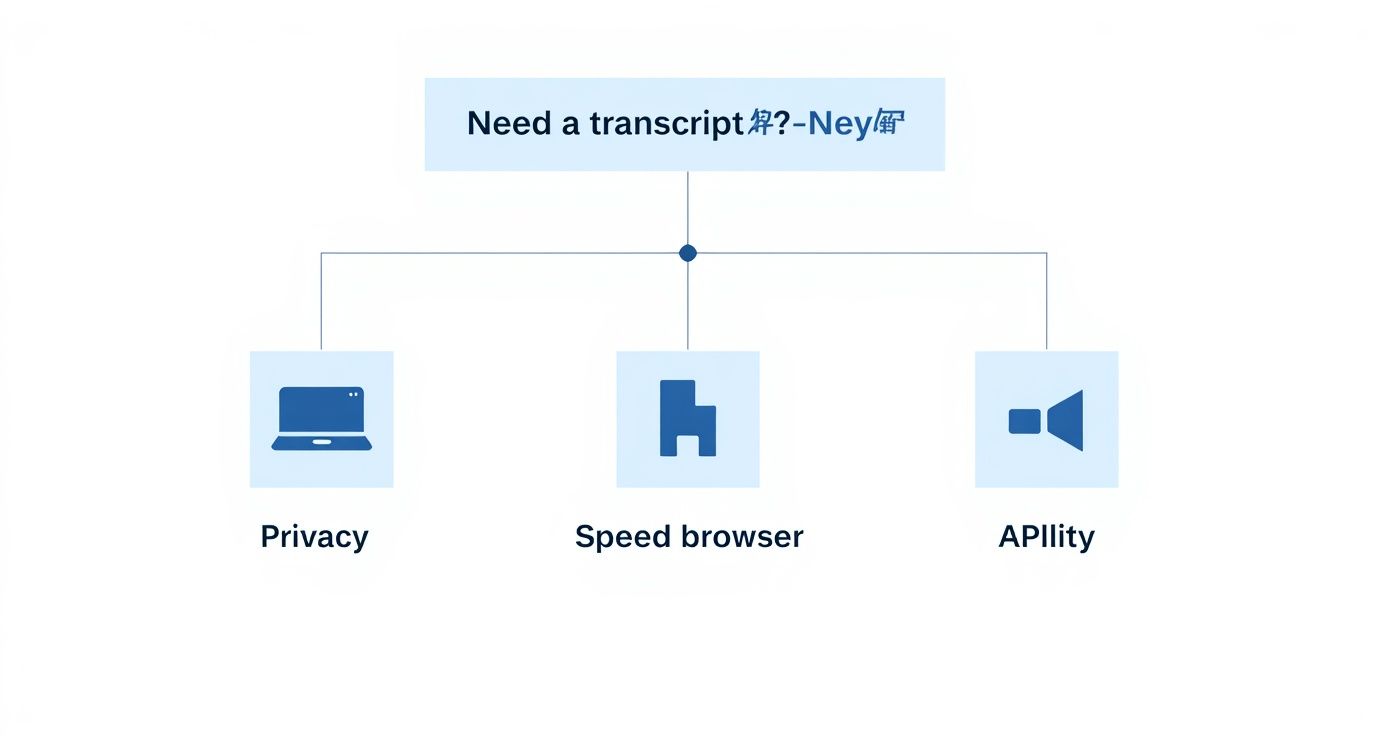
To make it even clearer, here’s a quick breakdown to help you choose the right path for your next project.
| Method | Best For | Key Advantage | Main Limitation |
|---|---|---|---|
| Local Open-Source | Sensitive data, high-volume projects | Total privacy and no usage limits | Requires technical setup and a decent computer |
| Browser-Based | Quick, non-confidential tasks | Incredibly easy and fast to use | Lower accuracy, fewer features, privacy concerns |
| API Free Tiers | Critical projects needing top accuracy | Professional-grade quality and features | Strict usage caps on free plans |
Ultimately, there's a fantastic free tool out there for almost any transcription need. You just have to pick the one that aligns with your priorities.
Key Takeaway: There's no single "best" free transcription tool—it's all about matching the tool to the job. Whether you need Fort Knox-level security, instant results, or broadcast-quality accuracy, this guide will walk you through how to get it done without spending a dime.
When privacy is non-negotiable, you can’t beat running an open-source model right on your own machine. This is the best way to handle free audio file transcription for sensitive recordings like confidential interviews or proprietary research because your files never leave your computer. The go-to tool for this is OpenAI's Whisper. It’s remarkably accurate and keeps your data completely private.
You’ll need a little technical setup to get going, but it’s surprisingly straightforward. The two key ingredients are Python, the programming language, and FFmpeg, a workhorse utility for handling audio. If you’re on a Mac or a Linux machine, you probably already have Python installed. Just open your terminal (or Command Prompt on Windows) and type python --version to check.
Here’s what the Whisper code repository looks like—this is your home base for documentation and the source code itself.
Everything you need to get started, from installation steps to advanced usage, is right there in the repository.
Once you have Python and FFmpeg ready, installing Whisper is just a single line in your terminal. Pop it open and run this command:
pip install -U openai-whisper
That command tells Python's package manager to grab the latest version of Whisper and set it up for you.
Now for the fun part. Let's say you have an audio file named interview.mp3 that you need to transcribe. Just navigate to its folder in your terminal and run:
whisper interview.mp3
And that's it. Whisper gets to work, processing the audio and spitting out a few text files with your complete transcript.
Expert Tip: The very first time you run this, it'll take a bit longer because Whisper needs to download the model to your machine. Don't worry, every transcription after that will be much quicker.
Whisper isn't a single tool; it’s more like a toolkit with models of different sizes. Each one offers a different balance between speed and accuracy, so you can pick the one that fits your hardware and how precise you need the transcript to be.
Here's a quick breakdown of what's available:
tiny and base: These are the smallest and fastest. They're perfect for quick tests or if you're working on an older, less powerful computer. The accuracy is decent, but they might get tripped up by heavy accents or noisy backgrounds.small and medium: This is where you'll find the sweet spot for most projects. They deliver a big jump in accuracy without demanding a supercomputer. The medium model, in particular, often provides fantastic results on a standard modern laptop.large: The most powerful and accurate model, delivering results that are often indistinguishable from a human transcriber. The catch? It’s a resource hog and runs very slowly unless you have a powerful NVIDIA graphics card (GPU) to accelerate it.Switching between models is easy. You just add a --model flag to your command. For instance, if you wanted to use the more accurate medium model for that same interview file, you'd run this:
whisper interview.mp3 --model medium
For most day-to-day free audio file transcription tasks, I'd suggest starting with the small or medium model. You'll get high-quality transcripts without having to wait forever. If the result isn't quite perfect, you can always run it again with a larger model. This flexibility is what makes local transcription so powerful.
Sometimes you just need a transcript now, without the hassle of installing new software. In those moments, the tools you already have in your web browser can be surprisingly effective. These methods are my go-to for quick, non-sensitive jobs where convenience is king.
The demand for turning audio into text is exploding. The transcription market was already worth $21.01 billion in 2022 and is on track to hit $35.8 billion by 2032. This isn't just some niche industry; it's a fundamental need, and you can dig into more of these automated transcription statistics to see just how big it's become. This growth is exactly why big tech companies have poured resources into building powerful, free transcription features right into the platforms we use every day.
One of the cleverest low-tech solutions uses Google Docs's built-in voice typing tool. It was made for dictation, but a little creative thinking turns it into a real-time transcription machine. The concept is simple: you play your audio file out loud, and your computer’s microphone "listens" and types what it hears directly into a document.
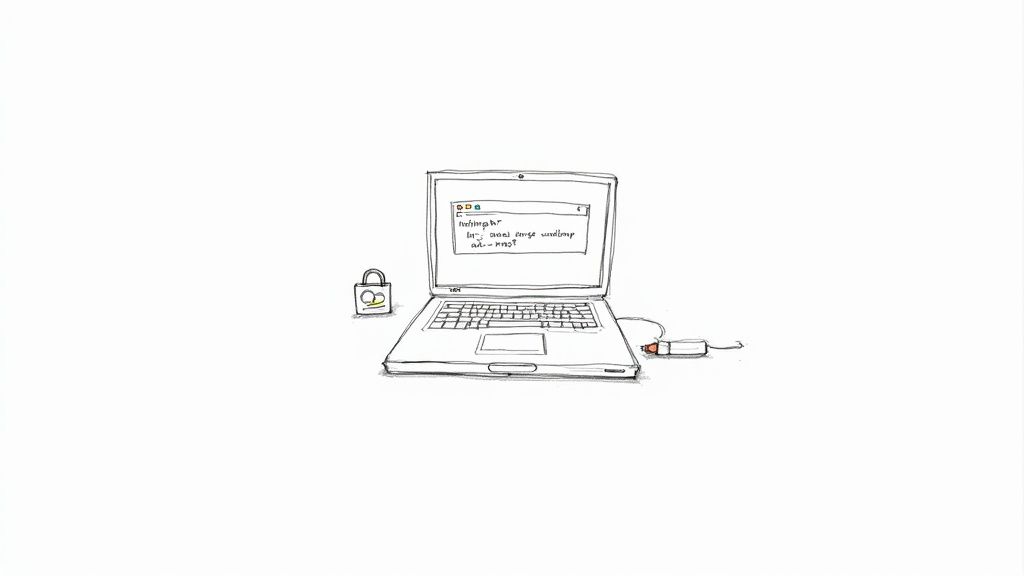
Its biggest advantage is simplicity. Anyone can get started in seconds with zero technical setup.
To get a decent result, a little prep goes a long way:
My Personal Tip: To really level up the quality, I use a virtual audio cable. It's a bit of software that internally routes your computer's speaker output directly to its microphone input. This creates a perfect digital loop, cutting out all room noise and speaker fuzz for a much cleaner transcript.
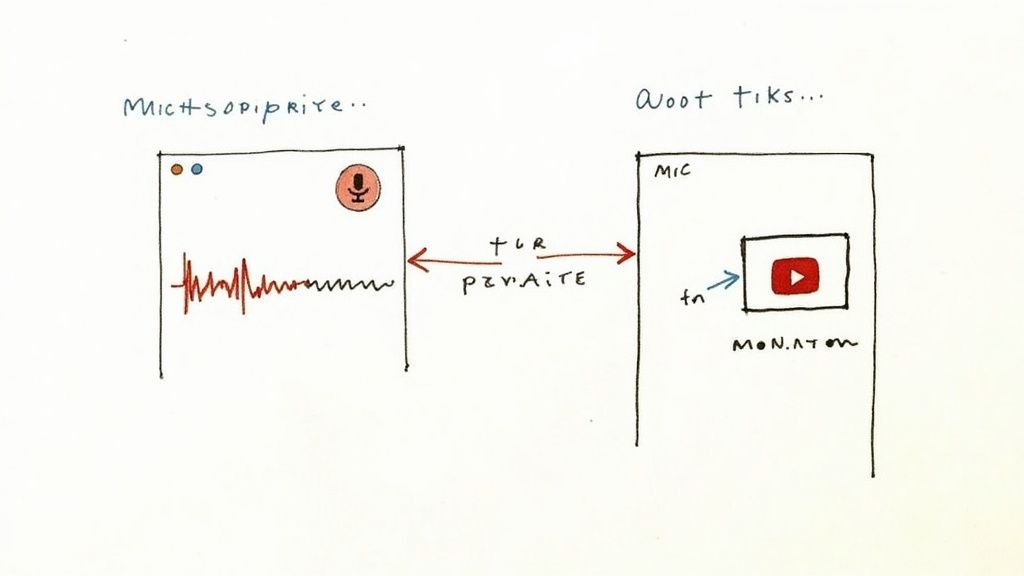
If you're willing to wait a bit for a more accurate result, what I call the "YouTube backdoor" is a fantastic trick. You're essentially tapping into YouTube's powerful automatic captioning engine, which does a remarkable job of handling different accents and messy background noise.
Here’s how you pull it off:
This approach almost always gives you a cleaner, better-formatted transcript than the live Google Docs method. It’s my preferred free option for longer recordings where I can trade a little bit of time for a lot more accuracy.
What if you need the absolute best accuracy for a critical recording, but your budget is tight? This is where the free tiers offered by professional transcription APIs come into play. They give you a chance to use enterprise-grade tools for free, perfect for those one-off projects where quality is everything.
Think of it as a test drive. This method is fantastic for developers building a proof-of-concept or for anyone who has a crucial interview or meeting recording that needs to be transcribed perfectly. By signing up, you get temporary access to advanced language models that often outperform even the best local open-source options.
Commercial APIs do a lot more than just turn words into text. Their real strength is in the advanced features that solve the most annoying transcription headaches. A free tier is your only way to get these without pulling out a credit card.
Here’s a taste of what you can usually try out:
The real win with an API's free tier isn't just better word accuracy—it's getting access to sophisticated tools like speaker diarization that simple transcribers lack. This is how you turn a messy audio file into a polished, professional document.
Most services make it pretty easy to get going. Take a platform like Lemonfox.ai for example; the process is designed to be quick and developer-friendly so you can focus on the transcription, not the setup.
It usually boils down to a few simple steps. First, you’ll sign up for an account on their website. After that, you'll find your unique API key in your account dashboard—this is what authenticates your requests.
From there, you just need to send your audio file to their servers using a simple script. Most services provide copy-and-paste examples in their documentation, often using Python or a cURL command, so you can get started in minutes.
Of course, "free" always has its limits. Most API free tiers are capped by the number of minutes you can process each month (e.g., 60 minutes). This makes them perfect for that occasional important task, but not for transcribing your entire backlog of audio. Always double-check the usage policy to make sure you don't go over the free allowance.
Let’s be real: even the best AI tools will spit out a transcript with a few mistakes. But you can seriously boost the quality of any free audio file transcription by taking a few smart steps before and after the AI gets to work. Think of it like cooking—prepping your ingredients and seasoning the dish makes all the difference and saves you from hours of tedious editing later on.
The bedrock of any great transcript is clean source audio. AI models aren't miracle workers. They struggle with the same things we do: background noise, people talking over each other, and fluctuating volume. A few minutes of prep can change everything.
Before you even think about hitting "transcribe," spending a little time cleaning up your audio is the best thing you can do. You don't need expensive software; a free and powerful tool like Audacity is perfect for the job.
You don't have to be a sound engineer, either. Just focus on a few high-impact fixes.
Getting this right is a big deal. The demand for quality transcription is huge—the U.S. market alone was valued at $30.42 billion in 2024, driven by industries from healthcare to media. You can dig into more of the data on this growing market over at Grand View Research.
Once the AI has given you that first draft, it's time for the human touch. This is the post-processing step where you turn a decent transcript into a truly professional one.
Don't just read it from top to bottom. Work smarter with a targeted proofreading plan to catch the specific kinds of errors AI is known for making.
My Workflow Tip: I always start with a "Find and Replace" sweep. I search for consistently misspelled names, brand-specific terms, or technical jargon that the AI just didn't get. Fixing every instance at once is a massive time-saver.
After that, I zero in on the things AI models consistently struggle with:
This two-stage approach—cleaning the audio on the front end, then systematically proofing the text on the back end—is the most efficient path to getting a near-perfect transcript without losing your mind on manual edits.
When you start digging into free audio file transcription, a few key questions always pop up. It's smart to think about privacy, file types, and what these tools can realistically do. Getting a handle on these details will help you pick the right approach for your project.
Let's break down some of the things people ask most often.
This is a big one, and the short answer is: it depends entirely on the tool you use. Your security strategy really should match how sensitive your audio is.
If you're dealing with confidential business meetings, personal notes, or anything you wouldn't want out in the open, the answer is clear.
When privacy is non-negotiable, stick with an offline, local solution.
It’s easy to get hung up on file types, but the real secret to good transcription isn't the format—it's the quality of the audio itself. A clean, crisp MP3 will give you a much better transcript than a noisy, muffled WAV file every single time.
With that said, if you have the option, starting with a lossless format like WAV or FLAC is a good practice. These formats keep all the original audio information intact. But honestly, most modern AI models are fantastic with common formats like a high-bitrate MP3 (192 kbps or higher) or an M4A.
Key Insight: Don't get too bogged down by the file extension. Your top priority should be getting the cleanest recording possible with minimal background noise. A good recording is half the battle won.
Telling different speakers apart in a recording is a process called speaker diarization, and this is where most free, simple tools hit a wall.
Basic methods like Google Docs voice typing or a standard Whisper command will just give you a single, unbroken block of text. They have no idea who said what.
To get that automatic speaker separation, your best free option is usually the trial tier of a professional API. These advanced services are built from the ground up to handle conversations with multiple people, and they’ll neatly label the dialogue for you.
Yes, almost every free method has some kind of ceiling. Local tools like Whisper don’t have an explicit time limit, but they are limited by your computer's own processing power. If you’re trying to transcribe a file that’s several hours long, a less powerful machine will really struggle.
Browser-based tools often have session time limits, and free API tiers nearly always cap the number of minutes you can process each month. This makes them great for one-off tasks but not a sustainable solution for ongoing, high-volume transcription work.
Ready to move past the limitations of free tools? If you need professional accuracy and features like speaker diarization without the enterprise price tag, Lemonfox.ai has a Speech-To-Text API built for developers and businesses. Give it a try with a generous free trial and see how it handles your toughest audio. Learn more at https://www.lemonfox.ai.