
First month for free!
Get started
Published 10/15/2025
Let's be honest, manually transcribing audio is a soul-crushing task. It’s slow, tedious, and no one really wants to do it. Thankfully, AI-powered services have completely changed the game. A tool like Lemonfox.ai can chew through hours of audio and spit out a text file in just a few minutes. It’s a massive efficiency gain, but getting the best results requires a little know-how.
This guide is all about the practical side of things. We'll walk through the entire process, from prepping your audio files to get the cleanest possible input to actually sending them off to the Lemonfox.ai API.
We're going to cover everything you need to know to get started and get great results. Think of it as a roadmap for turning your recordings into valuable, usable text.
Here’s what we’ll dig into:
This isn't just about saving time. It's about unlocking the information trapped in your audio. The demand for this is exploding—the U.S. transcription market is expected to rocket past $32 billion by 2025 and could even top $50 billion by 2035. That growth is fueled by the sheer volume of audio and video content being created every single day. If you want to dive deeper, you can explore more market insights on the growth of transcription services.
Sure, you can find plenty of websites where you can upload a file for transcription. But using an API gives you a level of control and flexibility those simple tools can't match. An API-first approach lets you build transcription directly into your own apps or automated workflows. Imagine a system that automatically transcribes and archives every new meeting recording—that's the kind of power an API provides.
When you first dive into Lemonfox.ai, you'll see it’s built with developers in mind. The interface is clean and straightforward.
As you can see, the documentation and code snippets are right there, making it incredibly easy to get your first request up and running. By the time we’re done here, you’ll have a solid framework for turning any audio file into an accurate, workable transcript.
You've probably heard the old saying, "garbage in, garbage out." Well, it couldn't be more accurate when it comes to AI transcription. The single most important factor for getting an accurate transcript is the quality of your source audio. Before you even think about hitting the API, taking a few minutes to prep your file will save you a ton of headaches later.
Think of the AI as a world-class listener who gets distracted easily. It can tear through crystal-clear speech at an incredible pace, but things like background noise, echo, or a poor recording are like static on the line. Every bit of that interference forces the AI to make a guess, and those guesses often turn into errors you'll have to fix by hand.
Giving the AI a clean file is like handing it a freshly printed book instead of a crumpled, coffee-stained napkin. The clearer the input, the better the output. It’s that simple.
First things first, let's talk about the file format. Most people default to MP3 because the files are small and convenient. The catch is that MP3s use lossy compression, which means the format literally throws away audio data to shrink the file size. That's fine for music on your phone, but for transcription, that discarded data might contain the subtle phonetic details the AI needs to be accurate.
For the best results, you really want to stick with a lossless format.
The bitrate is just as crucial. It measures how much data is in each second of audio. More data equals more detail. You should aim for a minimum of 192 kbps for MP3s if you absolutely have to use them. For WAV files, a sample rate of 48 kHz is a great target to capture all the nuance in human speech.
My Two Cents: Look, a high-quality MP3 can get the job done in a pinch. But if you have the choice, always go with WAV or FLAC. The slightly larger file size is a tiny price to pay for a massive jump in transcription accuracy.
Even with a perfect file format, the recording environment can completely derail your efforts. Background noise—whether it's an air conditioner humming, a dog barking, or people talking in the next room—is the primary enemy. It competes with the speaker's voice and confuses the AI. The same goes for echo and reverb, which often happen in rooms with lots of hard surfaces, causing words to blur together.
The good news is you don’t need a fancy recording studio to clean this up. Free software like Audacity has some surprisingly powerful tools that are easy to use.
This infographic breaks down a simple workflow I follow to prepare my audio.
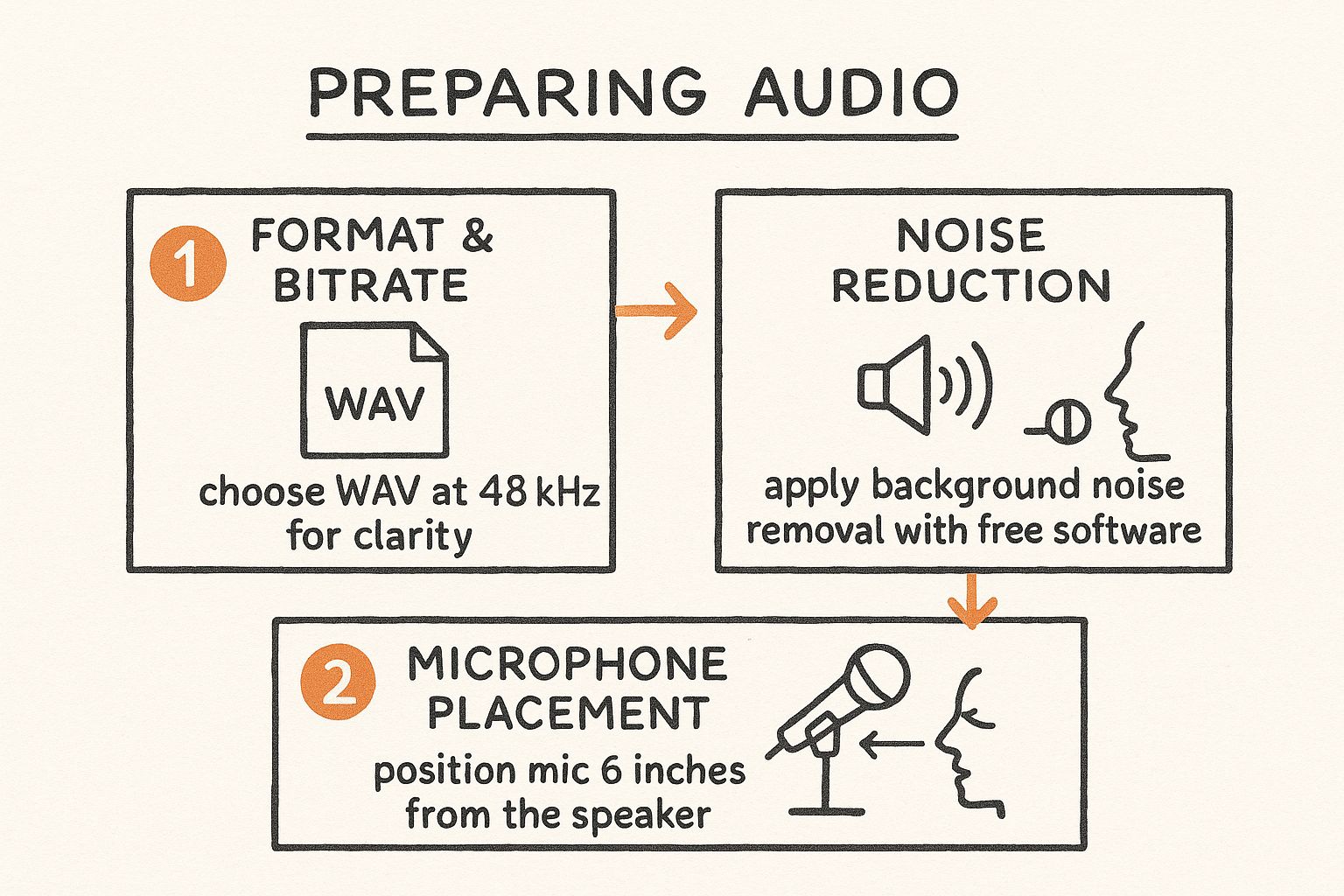
Running through this checklist—format, noise reduction, and proper microphone technique—sets you up for success with any speech-to-text service. Every minute you spend on prep work is easily five minutes you save on editing the final transcript.
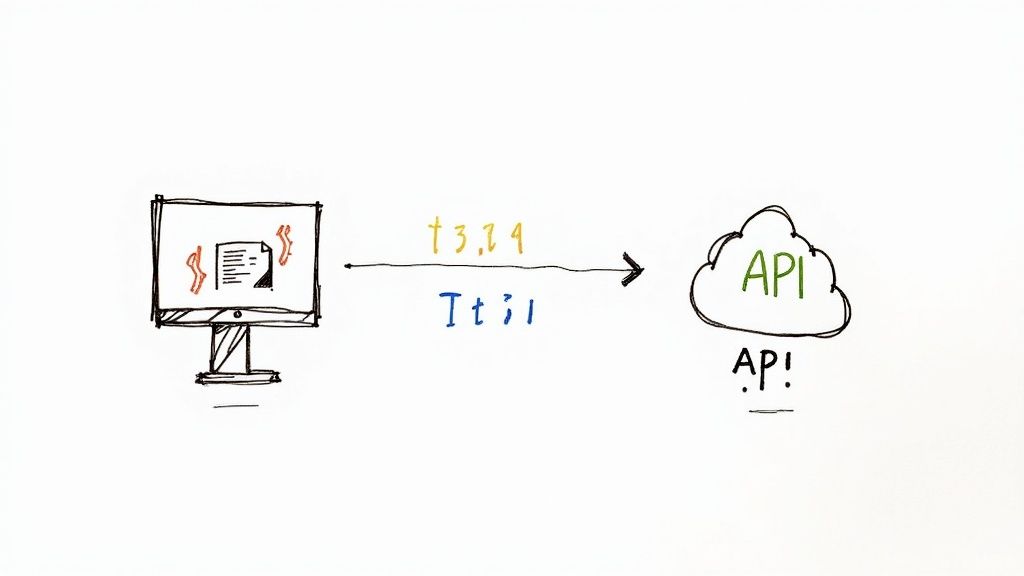
Alright, your audio file is prepped and ready to go. Now for the fun part: actually sending it off to be transcribed. This is where we'll start interacting with the Lemonfox.ai service directly.
We’re going to be using their API (Application Programming Interface). If that sounds overly technical, don't sweat it. Think of an API as a waiter in a restaurant. You don't need to know how the kitchen works; you just give your order to the waiter (the API), who takes it to the kitchen (Lemonfox.ai's servers) and brings back your finished dish (the transcript). It's a surprisingly simple and powerful way to get software to do complex work for you.
Before we can place our order, we need a way to prove we’re a paying customer. This means getting an account set up and grabbing your unique API key. The key is basically your secret password for accessing the service.
Here’s the quick-and-dirty on getting set up:
With that key copied, you’re officially ready to start transcribing.
I find Python is the easiest way to demonstrate this stuff. Its code is clean and almost reads like plain English, making it perfect even if you're not a seasoned developer. Let's walk through a script that takes a local audio file, sends it to Lemonfox.ai, and prints out the text it gets back.
You'll need the requests library, which is the standard tool for making web requests in Python. If you don't have it, a quick pip install requests in your terminal will sort you out.
Here’s the code we’ll be using. I’ll break down exactly what each piece does right after.
import requests
API_KEY = "YOUR_LEMONFOX_API_KEY"
AUDIO_FILE_PATH = "path/to/your/audio.wav"
API_URL = "https://api.lemonfox.ai/v1/audio/transcriptions"
headers = {
"Authorization": f"Bearer {API_KEY}"
}
with open(AUDIO_FILE_PATH, "rb") as audio_file:
files = {
'file': (AUDIO_FILE_PATH, audio_file, 'audio/wav')
}
data = {
    'language': 'en',  # Specify the language of the audio
    'speaker_diarization': 'false' # Set to 'true' to identify speakers
}

response = requests.post(API_URL, headers=headers, files=files, data=data)

if response.status_code == 200:
    transcription_result = response.json()
    print(transcription_result['text'])
else:
    print(f"Error: {response.status_code}")
    print(response.text)
Looks a bit intimidating at first glance, right? But really, it’s just a neatly packaged message.
Key Takeaway: An API call is just a structured message sent to a specific web address (the endpoint). It includes your credentials (the API key), your data (the audio file), and instructions (parameters like language).
Let's demystify that script so you can tweak it for your own projects. Knowing what these little pieces do is what separates blindly copying code from actually understanding how to get AI to transcribe an audio file.
Authorization header is the proper, secure way to send your API key. You never want to put secret keys directly in a URL."rb") and packaging it up to be sent over the internet.language parameter is crucial for getting an accurate result. Lemonfox.ai handles over 100 languages, so you could easily switch this to 'es' for Spanish or 'fr' for French.The growth in this space has been absolutely explosive. The global market for AI transcription services hit around USD 4.5 billion in 2024 and is projected to skyrocket to USD 19.2 billion by 2034. It's being driven by how accessible and accurate these tools have become. Just to give you an idea of the scale, North America alone accounts for roughly USD 1.58 billion of that market. You can dive deeper and explore the full AI transcription market report if you're curious about the trends.
Another parameter worth knowing is speaker_diarization. If you set this to 'true', the API will actually try to identify and label who is speaking and when. This is a game-changer for transcribing interviews, podcasts, or meeting recordings.
After sending the request, the script checks for a response code of 200, which is the universal sign for "everything went okay." If it gets that, it prints your clean, transcribed text. If not, it will print an error to help you figure out what went wrong.
https://www.youtube.com/embed/KA5No8UaKnc
Getting that successful API response is a great feeling. You've sent your audio into the digital ether and received structured, transcribed text in return. This is where AI really shines, turning what used to be hours of manual labor into a task that takes just a few minutes. But your job isn't quite finished yet.
The raw output from an API like Lemonfox.ai is a fantastic first draft, often hitting over 90% accuracy. That last 10%, though, is where human expertise makes all the difference. This next phase is all about turning that raw data into a polished, readable, and perfectly accurate document.
When you get a response from the Lemonfox.ai API, it doesn't just show up as a plain text file. You'll typically receive it in JSON (JavaScript Object Notation) format, which is the standard language machines use to exchange data. It might look a little intimidating at first, but it's logically organized to give you a lot more than just the words.
A typical response is packed with useful information:
Speaker 0 or Speaker 1, showing you who said what and when.This structure allows you to extract exactly what you need. You could write a quick script to pull only the main text, or you could build a more advanced tool that creates an interactive transcript where clicking a word jumps you to that exact moment in the audio.
No matter how sophisticated AI gets, it simply doesn't have the real-world context that a person does. That’s why a final manual review is non-negotiable for any professional work. This is your chance to catch the subtle errors an algorithm would miss, transforming a good transcript into a flawless one.
This human-in-the-loop approach is now central to the entire transcription industry. The global market was valued at around $21 billion in 2022 and is projected to blow past $35 billion by 2032. This growth is happening largely because AI handles the heavy lifting, freeing up human editors to focus purely on quality control. You can read more about key transcription industry trends to see just how big this shift is.
When you sit down to review, keep an eye out for these common problem areas where AI tends to trip up.
As you start editing, you're doing more than just proofreading for typos—you're listening for meaning and context. The goal is to make the text a perfect mirror of what was actually said.
Pay special attention to these elements:
Pro Tip: Don't just read the transcript—listen to the audio while you read along. It makes it so much easier to catch awkward phrasing, incorrect words, and missed nuances that your eyes might otherwise skim right over.
Reviewing a transcript requires a systematic approach. To make sure you cover all your bases, it helps to use a checklist.
Here’s a table outlining the key things I always look for when I'm cleaning up an AI-generated transcript. It ensures I don't miss the small details that make a big difference in the final quality.
| Check Item | What to Look For | Example Correction |
|---|---|---|
| Speaker Identification | Generic labels (Speaker 0, Speaker 1) that need to be replaced with actual names. |
Change Speaker 0: to **Mark Chen:**. |
| Proper Nouns | Misspelled names of people, companies, products, or locations. | Change "Lemon Fox" to "Lemonfox.ai". |
| Technical Jargon | Industry-specific terms or acronyms that the AI might misinterpret. | Change "API and points" to "API endpoints". |
| Homophones | Words that sound alike but are spelled differently (e.g., to/too/two, their/there/they're). | Correct "I want to go, to" to "I want to go, too". |
| Punctuation & Grammar | Missing commas, incorrect sentence breaks, or grammatical errors that affect readability. | Change "She left we followed" to "She left. We followed." |
| False Starts & Fillers | Repetitive phrases ("um," "uh," "you know") or sentences that were started and then abandoned. | Decide whether to remove "So, I, uh, I think..." for a cleaner read. |
| Ambiguous Words | Words that are unclear due to audio quality. Listen to the audio segment to confirm. | Verify if the speaker said "affect" or "effect". |
Using a checklist like this turns your review from a guessing game into a methodical process, ensuring a professional-grade result every time.
The final step is all about presentation. A raw wall of text is tough to read and almost impossible to scan. Good formatting adds structure and makes the information easy for your audience to digest.
Here’s a simple routine to follow:
Speaker 0 for the actual names of the speakers (e.g., Jane Doe: or John Smith:). This makes any conversation simple to follow.By following this process—parsing the data, reviewing for accuracy, and formatting for clarity—you'll have truly mastered how to transcribe an audio file. You're using AI for its incredible speed while applying your own intelligence for that final layer of precision and polish.
Alright, so you’ve got the basics down. Sending an audio file and getting back a transcript is one thing, but now it's time to unlock the real power of the API. These next-level techniques are what turn a simple transcription tool into a seriously efficient, automated system that’s tailored to your exact needs.
We're moving beyond one-off API calls. The goal here is to build a process that can handle complex jobs, understand your specific lingo, and process huge volumes of audio without you having to babysit it. This is how you integrate transcription deeply into your product or business operations.
If you're transcribing anything with multiple people—interviews, podcasts, meetings—you know the pain. Figuring out who said what is just as critical as the words themselves, but manually labeling speakers is mind-numbingly tedious.
This is exactly what speaker diarization was built for. It’s a game-changer.
When you enable this feature, the AI listens for the unique vocal fingerprints in your audio. It then neatly tags each part of the conversation with a generic label, like Speaker 0 or Speaker 1.
From there, your job is simple. A quick find-and-replace to switch Speaker 0 to "Jane Doe" and Speaker 1 to "John Smith," and you're done. It's a massive shortcut that makes messy, multi-speaker recordings so much easier to handle.
Out of the box, speech-to-text models are fantastic at understanding general conversation because they're trained on massive, diverse datasets. But throw some niche terminology at them, and they can easily stumble.
Think about words specific to your world:
The solution is a custom vocabulary. By feeding the API a list of these special words, you're essentially giving it a study guide for your content. It dramatically boosts the model's ability to catch and correctly spell those terms, which means higher accuracy for you.
For instance, if your team is always talking about "Project Chimera," adding "Chimera" to your custom list ensures the AI doesn't hear it as "camera." Simple, but incredibly effective.
Key Insight: Custom vocabularies are one of the most powerful tools for fine-tuning AI transcription. You're directly patching the model's blind spots, which means you'll spend far less time on manual corrections later.
A little bit of prep work here pays off big time in the long run, especially with technical or specialized audio.
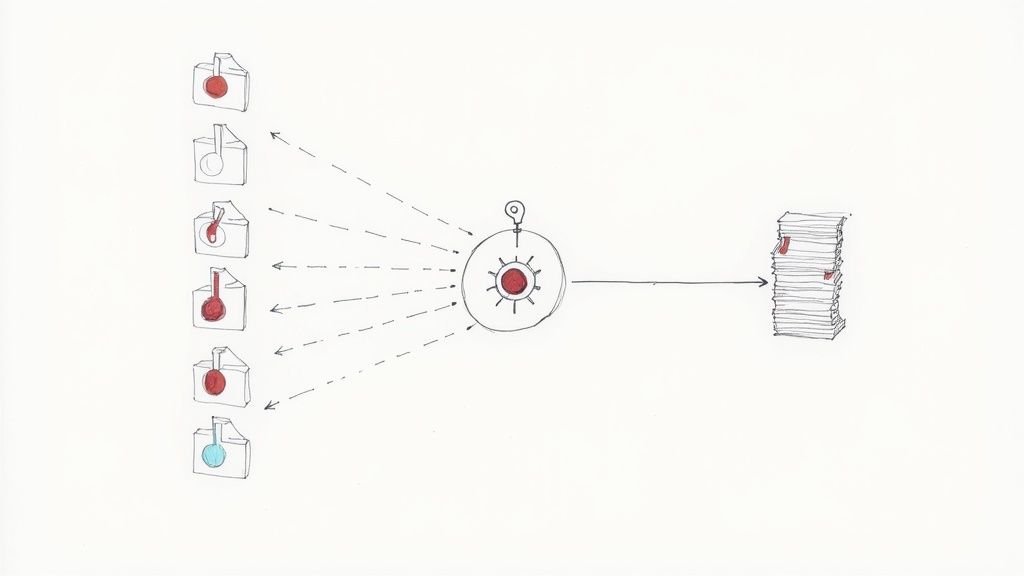
Transcribing one file is easy. But what about 100? Or 1,000? Constantly checking the API status to see if each job is finished—a process called polling—is clumsy and inefficient.
There’s a much smarter way to work: webhooks.
Think of a webhook as an automated notification. Instead of you repeatedly asking the API, "Are you done yet?", the API proactively tells you, "Hey, I'm finished, and here's the completed transcript."
Here's how it works in practice:
This "push" approach is perfect for building scalable, hands-off workflows. You could have a system where dropping a new file in a cloud folder automatically kicks off the transcription, and the finished text is then piped to another service for storage or analysis. It's how you truly automate transcription at scale, with no manual steps in between.
Even with a great tool like Lemonfox.ai, you're bound to have questions when you first dive into transcribing audio. From figuring out the best file format to dealing with noisy recordings, a few key insights can make all the difference in the quality of your final transcript.
Let's walk through some of the most common questions I hear from users. Getting these cleared up from the start will save you a ton of time and help you build a much smoother workflow.
This is the big one, isn't it? The short answer is that modern AI is shockingly good. In ideal conditions—think a clear, single-speaker recording—it can easily hit over 95% accuracy. For churning through large amounts of audio quickly and affordably, it’s a game-changer.
But, a human ear still has the upper hand in a few tricky situations.
Humans are better at navigating:
My advice? Use a hybrid approach. Let the AI do the heavy lifting for the first pass—it's fast and cheap. Then, have a human proofreader clean up the nuanced errors. You get the speed of automation and the polish of a human expert. It's the best of both worlds.
The file format you use has a direct impact on the quality of your transcript because it determines how much data the AI gets to analyze. If you're looking for pure, pristine quality, lossless formats are king.
Here’s the thing, though: the quality of the recording itself matters way more than the file extension. A clean MP3 recorded on a good microphone will always give you a better transcript than a noisy WAV file recorded in a wind tunnel. Always prioritize a clean recording first.
Background noise is the arch-nemesis of accurate transcription. Whether it's an air conditioner humming, coffee shop chatter, or wind hitting the mic, unwanted sounds can completely derail the AI. The best way to deal with this is to tackle it before you even send the file for transcription.
Pre-processing your audio can make a world of difference. You don't need expensive software; a free tool like Audacity has powerful noise reduction features. With a few clicks, you can isolate and remove consistent hums and hisses, which dramatically improves the AI's ability to pick out the speech. If you can't avoid the noise during recording, just plan on spending a little more time editing the final transcript.
You bet. Modern APIs, including Lemonfox.ai, offer real-time (or streaming) transcription. This is incredibly useful for things like live captions for meetings, subtitling a webinar as it happens, or monitoring a live broadcast.
It works a bit differently than file-based transcription, using a specific API endpoint that processes audio chunks as they come in. The setup is a bit more involved, but it opens up a whole new world of live speech-to-text applications.
Ready to see just how good AI transcription can be? Give Lemonfox.ai a try. We'll give you 30 hours of free transcription to test everything out—from our high-accuracy models to speaker diarization—for less than $0.17 per hour. Sign up and start transcribing in minutes.