
First month for free!
Get started
Published 1/2/2026
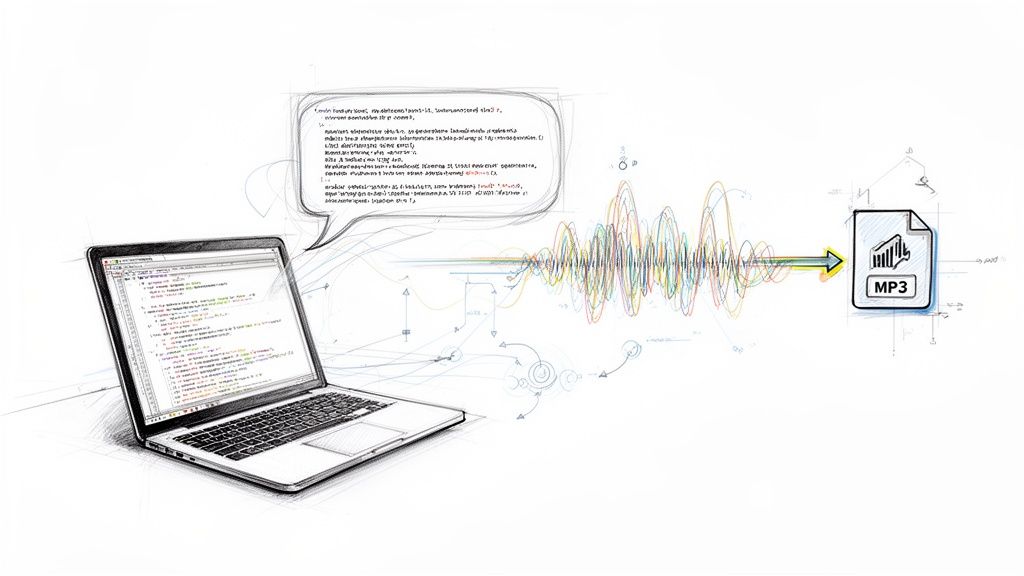
At its heart, converting text to an MP3 file is pretty straightforward. You use a text-to-speech (TTS) API to take a string of written words and synthesize it into an audio file. As a developer, you can integrate these APIs to programmatically generate human-like speech on the fly, creating dynamic and accessible audio content whenever you need it.
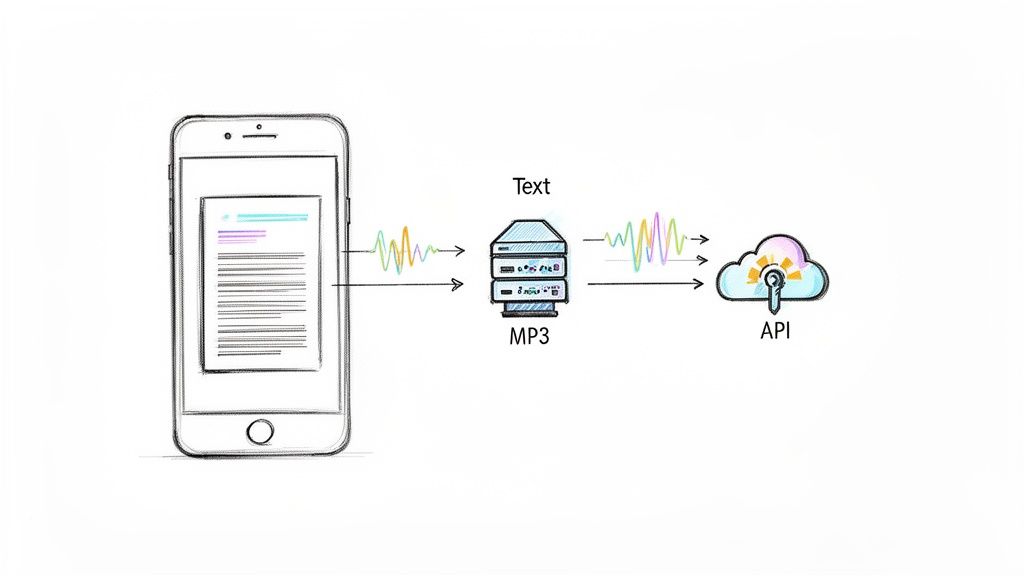
The ability to turn text into an MP3 file has moved from a "nice-to-have" novelty to a core feature in modern development. For us developers, this opens up a ton of possibilities for building richer, more engaging user experiences without needing a PhD in machine learning. Let's be honest, voice is just a more natural and convenient way to interact with technology for a lot of people.
The market data backs this up. The text-to-speech market was already valued at USD 3.6 billion in 2023 and is on track to hit an incredible USD 14.6 billion by 2033. This massive growth is all about the explosion of voice-enabled devices and an ever-growing appetite for audio content.
Fundamentally, converting text to MP3 is about meeting users where they are. Think about someone trying to catch up on your latest blog post during their commute. An audio version, generated instantly, makes that possible. It's a simple addition that turns static content into something that fits a multi-tasking lifestyle.
This technology isn't just for one type of app, either. Its applications are incredibly broad:
A lot of the magic behind modern text to MP3 APIs comes from huge leaps in artificial intelligence. The good news is that providers like Lemonfox.ai handle all the complex stuff, giving developers like us direct access to incredibly sophisticated neural voices through a simple API call.
Key Takeaway: Adding text-to-MP3 functionality isn't just about bolting on a new feature. It's about fundamentally rethinking how people interact with your app, which can lead to a huge boost in engagement and make your content far more inclusive.
Before we dive into the "how-to," let's look at some of the most common ways developers are putting this technology to work.
This table gives a quick overview of practical applications for developers looking to integrate TTS technology.
| Application Area | Developer Benefit | Example Implementation |
|---|---|---|
| Media & Publishing | Increases content reach and engagement. | A news site adds a "Listen to Article" button that generates an MP3 on demand. |
| E-Learning | Improves accessibility and learning retention. | An online course platform offers audio versions of all lesson text and quizzes. |
| Customer Support | Automates responses and reduces wait times. | A company's IVR system uses dynamic TTS to read out account-specific information. |
| IoT & Smart Devices | Provides hands-free user interfaces. | A smart home hub announces weather alerts or calendar reminders with a natural voice. |
| Accessibility Tools | Makes digital content available to everyone. | A screen reader app converts website text into spoken words for visually impaired users. |
As you can see, the possibilities are vast and can add significant value across different industries.
In a packed marketplace, user experience is often the one thing that makes you stand out. High-quality, human-like audio can be a powerful differentiator. The days of clunky, robotic voices are over—users now expect a polished and natural-sounding experience.
By implementing a solid text to mp3 solution, you’re giving people another way to consume your content that fits their modern, on-the-go lifestyle. This focus on convenience and accessibility doesn't just help with user retention; it also shows that your brand is forward-thinking and genuinely cares about its users. It's a strategic investment that directly impacts the quality and reach of your product.
Alright, with the theory out of the way, let's get our hands dirty and actually convert some text. This is the fun part, where you see just how fast you can turn a string of text into a spoken MP3 file. The whole process boils down to sending a request to the TTS provider's API endpoint, and I'll walk you through every piece of it.
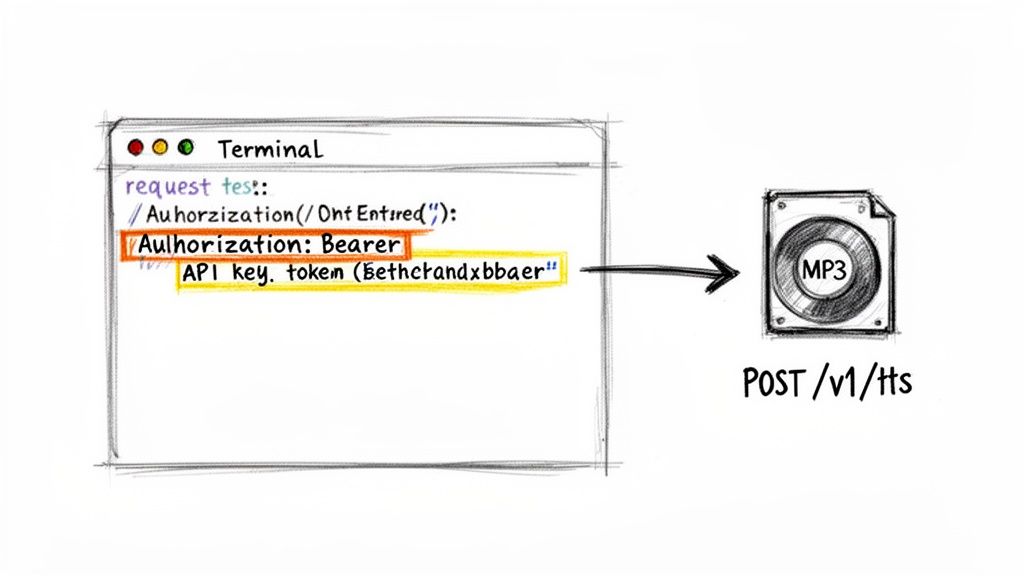
First up, you need an API key. This is your personal credential that tells the service, "Hey, I'm a legitimate user." Think of it as a password for your app. Once you sign up for a service like Lemonfox.ai, you'll find this key waiting for you in your account dashboard.
Security Tip: Never, ever hardcode your API key directly into your scripts. A much safer practice is to store it as an environment variable (e.g.,
process.env.API_KEY). This keeps your key from being accidentally exposed if you share your code or push it to a public Git repository.
A typical text-to-MP3 API request has three main parts: the endpoint URL, the headers, and the body. Nail these three, and you're golden.
Let's quickly break down what each one does:
Authorization: Bearer YOUR_API_KEY.With that structure in mind, let’s see what it looks like in practice.
Python is fantastic for this kind of work, especially with the requests library, which makes firing off HTTP requests a breeze.
Here’s a bare-bones example of how to ask an API to turn a simple sentence into audio. This snippet shows the fundamental logic of authenticating and sending your text payload.
import requests import os
API_KEY = os.getenv("LEMONFOX_API_KEY") API_URL = "https://api.lemonfox.ai/v1/audio/speech"
headers = { "Authorization": f"Bearer {API_KEY}", "Content-Type": "application/json" }
payload = { "voice": "echo", "text": "Hello, world! This is my first text to MP3 conversion." }
response = requests.post(API_URL, headers=headers, json=payload)
See how simple that is? The code sets up the authentication headers, defines the text and a voice model in the payload, and sends it all off with a POST request. The API takes it from there, processes the request, and sends back the raw audio data for your MP3 file.
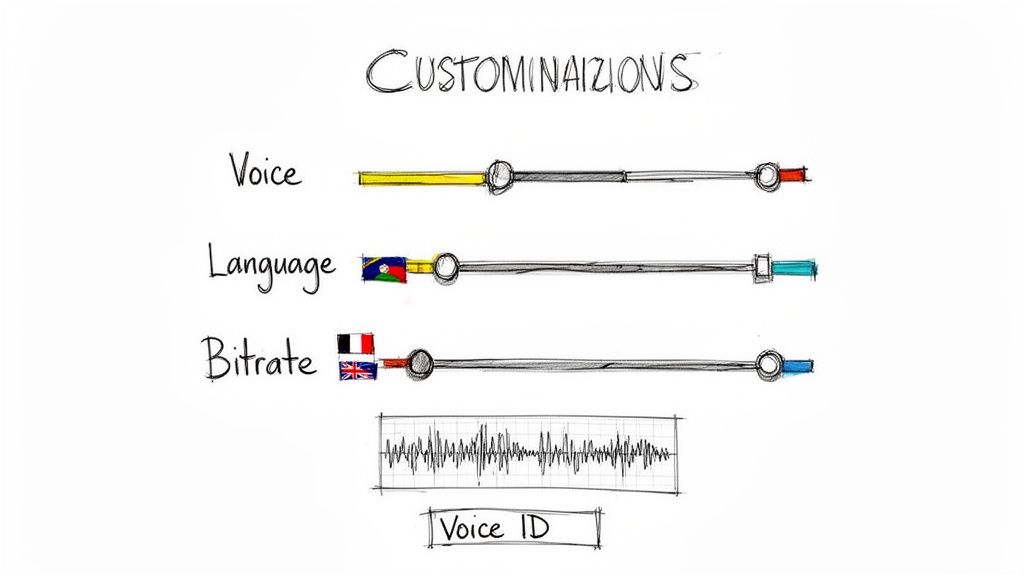
Getting a basic audio file is one thing, but the real magic happens when you start customizing the output. This is where you move beyond the default robotic voice and give your application a personality that actually connects with users. We're talking about hand-picking voices, switching languages, and tweaking the audio quality to perfectly match your needs.
The first step is always to see what options you have. Most professional TTS APIs offer an endpoint to list all available voices. Hitting this endpoint usually returns a JSON array, with each object detailing a voice's name, gender, language, and the all-important unique voice ID. This ID is the golden ticket you'll use in your API calls to specify exactly which voice you want.
With a list of voice IDs in hand, you can now tell the API which one to use. Instead of the generic default, maybe you need a warm, friendly female voice for a customer support bot, or a crisp, formal male voice for narrating technical docs.
It's usually as simple as adding a voice_id parameter to your request body. This might seem like a small change in your code, but the impact is huge. The right voice persona can genuinely affect user trust and keep people engaged with your app.
Let's say you want to switch from a standard American English voice to a specific British one. Here’s how that would look in practice:
/voices endpoint to fetch the full list.en-GB-Sonia-neural).voice parameter to that ID you just copied.Pro Tip: Don't just pick a voice from a list based on its name or description. I always recommend generating a few short audio samples with your actual content. The perfect voice for a quick notification might sound completely wrong when reading a long-form article. You have to hear it to know for sure.
Beyond the voice itself, you can also control the technical details of the MP3 file. The most common dial you can turn is the bitrate, which directly impacts both audio quality and the final file size.
A higher bitrate gives you richer, clearer audio, but the trade-off is a larger file. Go with a lower bitrate, and you'll get a smaller file that's faster to download, but you risk introducing some fuzzy audio artifacts if you drop it too low.
Here’s a quick cheat sheet I use:
For most text to mp3 projects, starting at 128 kbps is a safe bet. It delivers a professional-sounding result without bloating your file sizes and slowing everything down. From there, you can experiment to find what works best for your specific application.
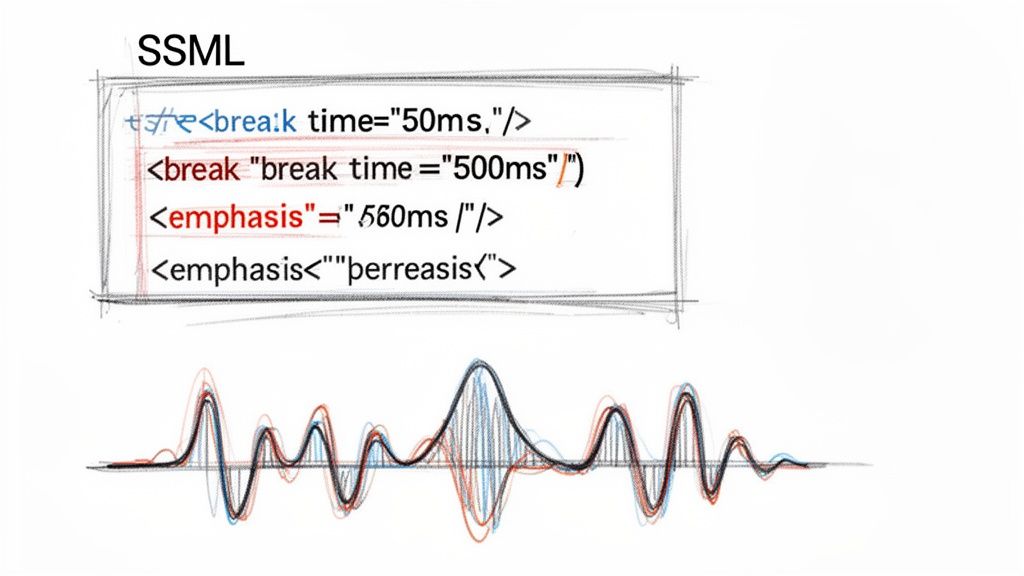
While picking the right voice and bitrate gets you most of the way there, the secret to truly professional-sounding audio is Speech Synthesis Markup Language (SSML). Think of SSML as HTML, but for voice. It's a game-changer, allowing you to embed tags directly into your text to control pronunciation, pacing, and emphasis.
Instead of just sending a plain string of text, you wrap it in SSML tags to give the API precise instructions. This is how you go from a computer reading a script to a human-like voice delivering a message. It elevates a simple text-to-MP3 conversion into a dynamic audio generation process.
One of the easiest yet most powerful things you can do with SSML is manage silence. Natural human speech isn't a constant stream of words; it’s peppered with pauses for breath, emphasis, and clarity. The <break> tag lets you replicate this digitally.
For instance, you can insert a specific pause between sentences to give the listener a moment to digest what you've just said.
<break time="500ms"/> adds a half-second delay.<break time="1s"/> creates a full second of silence, perfect for building anticipation before a key point.This kind of granular control over timing is something punctuation alone can't provide. It’s what separates a rushed, robotic delivery from a natural, conversational flow.
Ever wished the AI would just stress a certain word? That's exactly what the <emphasis> tag is for. By wrapping a word or phrase in it, you're telling the TTS engine to say it with more force, much like a voice actor would.
For example, <emphasis level="strong">This is critical</emphasis> makes that phrase pop, instantly grabbing the listener's attention. I find this incredibly useful for highlighting important instructions, warnings, or calls to action in audio guides.
My Personal Tip: Don't go overboard with emphasis. Just like using bold text in an article, its power is in its scarcity. I've found that emphasizing just one or two key phrases per paragraph makes the audio far more dynamic and engaging.
SSML unlocks even more control, letting you adjust pitch and speaking rate for specific parts of your text. You could lower the pitch for a serious tone or speed up the rate for a quick disclaimer. Mastering these tags is what will give your text-to-MP3 output that polished, professional feel.
Here’s a quick reference table I put together for some of the most common SSML tags you'll end up using.
| SSML Tag | Function | Example Usage |
|---|---|---|
<speak> |
The root element that wraps all SSML content. | <speak>Hello world.</speak> |
<break> |
Inserts a pause in the speech. | Wait for it... <break time="1s"/> now. |
<emphasis> |
Instructs the engine to stress a word or phrase. | This is <emphasis level="strong">very</emphasis> important. |
<prosody> |
Controls the pitch, rate, and volume of speech. | <prosody rate="fast">Speaking quickly.</prosody> |
<say-as> |
Specifies how to interpret and say a word or number. | The number is <say-as interpret-as="cardinal">12345</say-as>. |
<sub> |
Substitutes a word or phrase with another for pronunciation. | My name is <sub alias="Will">William</sub>. |
This is just a starting point, of course. The full SSML specification from the W3C offers a deep dive into all the possibilities, but the tags in this table will cover about 90% of what you'll need for most projects.
So, you've sent your request to the API. Now what? This next part is where a solid application is built—properly handling what the API sends back.
A successful request doesn't return a neat little JSON object; it sends back a stream of raw binary data. Think of it as the digital DNA of your MP3 file. On the flip side, if something goes wrong, you'll get a standard JSON error message telling you what happened.
The very first thing your code should do is check the HTTP status code. If you see a 200 OK, you’re golden. The audio data is in the response body, ready to go. Any other code, especially in the 400 or 500 range, means you need to pivot to your error-handling logic instead of trying to save a file that isn't there.
When you get that 200 OK response, it's crucial to remember you're dealing with a raw binary stream, not text. A common mistake I see developers make is trying to treat this data like a string, which inevitably corrupts the audio and results in an unplayable file.
You have to capture this stream and write it directly to a file with an .mp3 extension.
Here’s a clean way to do this in Python:
if response.status_code == 200: # Open a file in binary write mode ('wb'). This is the key. with open('output.mp3', 'wb') as f: # Write the raw binary content directly to the file. f.write(response.content) print("MP3 file saved successfully!") else: # If things went wrong, print the details. print(f"Error: {response.status_code}") print(response.json())
This simple check keeps your app from crashing and ensures you only write good data. Once your MP3 is saved, it's worth knowing how it stacks up against the many different audio file formats out there, as each has its own use case.
Let's be realistic: APIs fail. It happens. Your key could be wrong, the request body might have a typo, or the server could just be having a bad day. Your code has to be ready for this. When an error does occur, any decent API will return a structured JSON object with a helpful message.
My Advice: Don't just check for a non-200 status code and call it a day. Actually parse the JSON error response. This gives you incredibly useful feedback like "Invalid voice ID" or "Text input exceeds character limit," which is gold for debugging or for showing a clear message back to your users.
The text-to-speech world has come a long way since the robotic screen readers of the 1990s. Today's neural networks are used in high-stakes business applications like automated call centers, where reliability is non-negotiable. Building robust error handling is how you ensure your application meets these modern standards.
Picking the right Text-to-Speech API is a lot more than just a technical detail—it’s a business decision. The choice you make will directly affect your budget, your app's performance, and even how much your users trust you. The market is packed with options, and while many services look similar on the surface, the devil is in the details of their pricing models and data privacy policies.
Most providers bill you for every character you convert, which can get expensive fast if you're creating long-form audio. This model means you have to find that sweet spot: a service that delivers top-notch neural voices without a price tag that punishes you for growing your user base.
Price is one thing, but performance is everything. If you're building a real-time application like an interactive voice response (IVR) system or sending out dynamic audio notifications, latency is your most important metric.
Specifically, you need to care about the "time to first byte" (TTFB). This is the measure of how quickly the API begins sending audio data back to you after you've made a request. A slow TTFB leaves your users stuck in an awkward silence, which is a killer for user experience. A well-optimized API, on the other hand, can start streaming the MP3 almost instantly, making the interaction feel fluid and natural.
In today's world, you absolutely have to know how an API provider handles your data. It's a non-negotiable. Many services will hold onto your text to train their own AI models, which is a massive privacy red flag, especially if you're working with sensitive or personal information.
Always dig into a provider's data policies before you commit. Here’s what to look for:
For developers looking for 'text to MP3' solutions, Lemonfox.ai is a compelling option. It's designed to be cost-effective, offering human-like voices across 100+ languages and, crucially, instant data deletion for privacy. The free month-long trial with 30 hours is a great way to prototype without commitment. This reflects a broader shift in the text-to-speech market toward more accessible and scalable tools, a trend you can read more about on nextmsc.com.
Ultimately, the goal is to find an API that hits the trifecta: it’s affordable, it’s fast, and it respects your users' data. Nailing these three things ensures your text-to-MP3 feature is not only functional but also secure and sustainable as your project grows.
When you're working with text-to-speech APIs, a few questions tend to come up again and again. Whether you're stuck on a specific problem or just curious about how it all works, here are some straightforward answers from one developer to another.
You'll see "Standard" and "Neural" voices offered, and the difference is night and day.
Standard TTS voices are the old-school approach. Think of it like a digital cut-and-paste job, where a system stitches together tiny, pre-recorded bits of speech to form words. It works, but it's often what gives TTS that classic, slightly jarring robotic sound.
Neural voices are a whole different ballgame. They're built with deep learning models trained on massive amounts of human speech. Instead of just gluing sounds together, these models understand the rhythm, pitch, and flow of natural language. The result is audio that sounds remarkably human and is far more pleasant to listen to, making it the only real choice for any serious application.
You'll quickly find that most TTS APIs have character limits per request—you can't just throw an entire book at them at once. Trying to do so will almost certainly get you an error.
The proper way to handle this is to break the text down into manageable chunks.
pydub for Python or a similar tool in Node.js to concatenate the audio files into one final, seamless MP3.This chunking method is far more robust and keeps you well within API limits. It’s the professional way to handle large-scale conversions.
This is a common point of confusion, but the short answer is no. Speech Synthesis Markup Language (SSML) is incredibly powerful, but it’s not for audio mixing. Think of it as a way to direct the voice actor—you can use it to control pronunciation, add dramatic pauses, or change the speaking rate and pitch. It only affects the synthesized speech itself.
If you want to add a music bed, it's a two-step process:
My Takeaway: Treat the TTS API as your voice talent and a tool like FFmpeg as your audio engineer. They have different jobs, and trying to make one do the other's work just leads to headaches.
Absolutely. Most of the top-tier TTS providers know that developers need to kick the tires before committing. You'll find that many offer generous free tiers or trials that are perfect for building out a proof-of-concept or running a small personal project.
These aren't usually watered-down versions, either. You often get access to the same high-quality neural voices as paying customers, just with a monthly cap on characters or audio length. It's more than enough to see what's possible and properly evaluate the service.
Ready to build with a fast, affordable, and privacy-first TTS API? Lemonfox.ai gives you premium neural voices with a dead-simple integration. Get started for free and see how easy it is to convert text to MP3.