
First month for free!
Get started
Published 10/21/2025
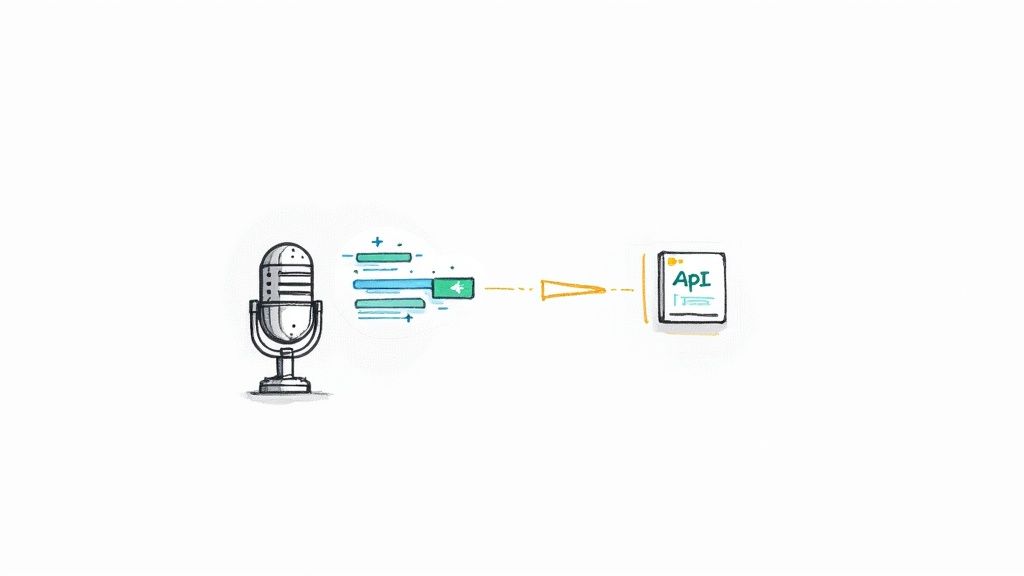
At its core, converting audio to text is simply the process of creating a written record from a spoken recording. It's often called speech-to-text, and these days, it’s almost always done using specialized software or an API powered by artificial intelligence.
Not too long ago, turning audio into text was a painstaking manual job. You'd have someone listen to a recording and type it out, word for word. But today, developers and businesses have overwhelmingly shifted to API-driven solutions. This isn't just about saving time; it's about gaining a level of speed, scale, and accuracy that was impossible with the old way of doing things.
Think about a media company that needs to add subtitles to hours of new video content. With an API, that job can be done in minutes. Or consider a market research firm that needs to pull insights from thousands of customer feedback calls. Instead of listening to each one, they can transcribe them all instantly to spot key trends. That's the real power of automated transcription audio to text.
The trend towards automation is undeniable. The global audio transcription software market is on track to hit $2.5 billion in 2025 and is expected to grow at a 15% compound annual rate through 2033. This explosion is fueled by the sheer volume of audio and video content being created in fields like healthcare, media, and education. If you want to dig deeper, you can explore more data on the audio transcription market's growth to see just how critical accessible documentation of spoken content has become.
This infographic gives a great visual overview of how an API-based transcription process works.
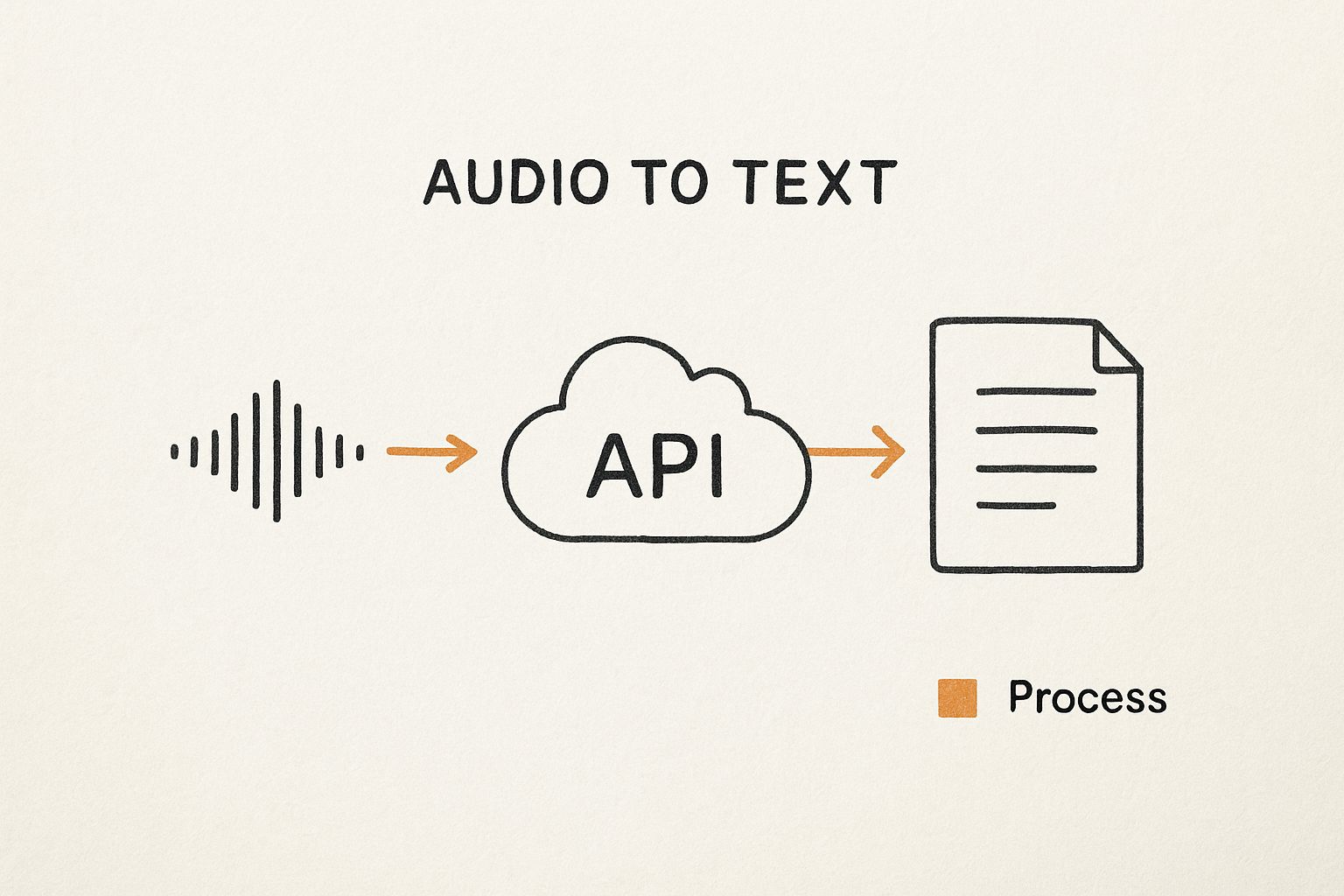
As you can see, the raw audio file gets sent to the cloud-based API. The API does the heavy lifting, processing the audio and sending back structured, ready-to-use text. It’s a clean and efficient way to turn unstructured audio into valuable, searchable data.
In simple terms, an API is a bridge. It lets your application connect to a powerful, pre-trained speech recognition engine without you ever having to build one from scratch. This saves an incredible amount of development time and gives you immediate access to world-class accuracy.
To really understand the shift, it helps to see a direct comparison. Here’s a quick look at why API solutions have become the standard for modern development.
| Feature | Manual Transcription | API-Based Transcription |
|---|---|---|
| Speed | Slow; can take hours to transcribe one hour of audio. | Fast; often near real-time, minutes for an hour. |
| Scalability | Very limited; depends on hiring more people. | Highly scalable; process thousands of files at once. |
| Cost | High labor costs, especially for large volumes. | Low pay-per-use model, far more cost-effective. |
| Consistency | Varies by transcriber and their focus. | Highly consistent and standardized output. |
| Integration | None; it's a separate, manual workflow. | Seamlessly integrates into apps and workflows. |
| Turnaround Time | Days or even weeks for large projects. | Minutes or hours. |
As the table shows, for any application that needs to handle more than a handful of audio files, an API is the only practical path forward.
Choosing a service like Lemonfox.ai brings some clear benefits over doing things the old-fashioned way.
Ultimately, if your application needs to work with spoken data, you need a reliable and efficient way to process it. In the next few sections, we’ll get our hands dirty and walk through exactly how to build a solution that does just that.
Before you can start turning audio into text, you need to lay some groundwork. We'll get your local Python environment squared away so it can talk to the Lemonfox.ai API. Getting this right from the start is a simple move that prevents a ton of frustration down the road.
The main idea here is to grab your unique API key and install the Python library we’ll use to make the actual API calls. Your API key is essentially a secret password; it’s how Lemonfox.ai knows it’s really you making a request. No key, no transcription.
First things first, you'll need to sign up for a Lemonfox.ai account. After you're logged in, head over to your dashboard and find your API key. Go ahead and copy that long string of characters.
Now, here’s a pro tip that’s non-negotiable: never, ever hardcode your API key directly in your script. If you accidentally commit that file to a public place like GitHub, your key is out in the wild for anyone to use. The professional standard is to store it as an environment variable.
This little step keeps your secret credentials separate from your code, which is a massive security win. It's a small habit that makes a big difference.
With your API key tucked away safely, you just need one more thing: a library to handle the web requests. For this, we'll use requests. It's pretty much the go-to choice in the Python world because it's so powerful yet incredibly easy to use.
Installing it is a breeze. Just open up your terminal or command prompt and type:
pip install requests
This one-liner tells Python's package manager to fetch and install the library. If you're working inside a virtual environment (and you probably should be), just make sure it's active before you run the command.
Storing your API key as an environment variable and installing
requestsare the only two setup steps you need. Your machine is now ready to send audio to the Lemonfox.ai API and get back a clean transcript without putting your credentials at risk.
And that's it! With your key secured and the right tool installed, you're all set to start writing the code that does the real work.
Alright, let's get our hands dirty and put everything together. We're going to build a simple but complete Python script that takes an audio file, sends it over to the Lemonfox.ai API, and prints out the transcription. Think of this as your foundational script for any transcription audio to text project you'll tackle from here on out.
We’ll walk through the code line by line. I'll explain how to structure the request headers for proper authentication, point it to the right API endpoint, and package the audio file correctly for the upload. By the time we're done, you'll have a working script ready to go.
The Lemonfox.ai platform is built with developers in mind—something you can see right on their homepage with its clean design and clear documentation.
It’s clear the goal is to get developers up and running quickly, without a lot of fuss.
Let's dive straight into the code. This script reads an audio file right from your computer, fires it off to the Lemonfox.ai API, and then displays the transcript it gets back. Don't be intimidated if it looks like a lot at first—we'll break it down piece by piece right after.
import os import requests
API_KEY = os.environ.get("LEMONFOX_API_KEY") if not API_KEY: raise ValueError("API key not found. Please set the LEMONFOX_API_KEY environment variable.")
API_URL = "https://api.lemonfox.ai/v1/audio/transcriptions/"
audio_file_path = 'path/to/your/audio.mp3'
def transcribe_audio(file_path): """ Sends an audio file to the Lemonfox.ai API for transcription. """ if not os.path.exists(file_path): print(f"Error: The file '{file_path}' was not found.") return
# Set up the authorization header
headers = {
    'Authorization': f'Bearer {API_KEY}'
}

# Prepare the file for uploading
with open(file_path, 'rb') as f:
    files = {
        'file': (os.path.basename(file_path), f, 'audio/mpeg')
    }

    print(f"Uploading {os.path.basename(file_path)} for transcription...")

    # Make the POST request to the API
    response = requests.post(API_URL, headers=headers, files=files)

    # Check the response from the server
    if response.status_code == 200:
        transcribed_text = response.json().get('text')
        print("\n--- Transcription Successful ---")
        print(transcribed_text)
    else:
        print(f"\n--- Error ---")
        print(f"Status Code: {response.status_code}")
        print(f"Response: {response.text}")
transcribe_audio(audio_file_path)
This entire script is self-contained. Just swap out 'path/to/your/audio.mp3' with the real path to your audio file, and it's ready to run.
Every part of that script plays a role, from authenticating your request to handling the final transcript. Let’s zoom in on the most important bits.
Authentication: The headers dictionary is your digital passport. The 'Authorization': f'Bearer {API_KEY}' line is how you securely tell the server who you are. This is a standard and secure way to handle API keys.
File Handling: The with open(file_path, 'rb') block is critical. It opens your audio file in binary read mode ('rb'). This ensures the raw data of the file is sent perfectly, whether it's an MP3, WAV, or another format.
The API Request: This is where the magic happens. The line response = requests.post(API_URL, headers=headers, files=files) packs up your headers and file and sends it all to the Lemonfox.ai server using an HTTP POST request.
A key takeaway here is understanding the difference between synchronous and asynchronous calls. The script we just built is synchronous—it sends the file and then patiently waits for the transcription to finish before doing anything else. This approach is perfect for short audio clips, like a quick voice note or a short interview answer.
What happens when you need to transcribe something long, like a 30-minute podcast episode? A synchronous request would likely time out while waiting. That's where an asynchronous call comes in.
Our script is a synchronous example, making it the perfect starting point for most common transcription audio to text tasks. You now have a solid, secure, and easy-to-understand Python script to begin transcribing your own audio.
Getting a response back from the API is where the real work begins. Whether it’s the perfectly transcribed text you were hoping for or a frustrating error message, understanding what the server is telling you is the key to building a reliable application.
A successful request to transcribe audio to text doesn't just dump a wall of text on you. The Lemonfox.ai API replies with a clean, structured JSON object that’s easy for your code to digest and use.
When everything goes right, you'll get back an HTTP 200 OK status code along with a JSON payload packed with useful data. The main prize, of course, is the transcription itself.
Here’s a look at what that response typically contains:
{ "text": "Hello, this is a test of the transcription service.", "language": "en", "duration": 3.5, "words": [ { "word": "Hello,", "start": 0.5, "end": 0.9 }, { "word": "this", "start": 1.0, "end": 1.2 }, ... ] }
Grabbing the full transcript is as simple as accessing the "text" key. But the real magic is in the "words" array. This gives you word-level timestamps, which are incredibly powerful for features like:
This level of detail is a huge advantage. High-quality transcription is a massive industry—the U.S. market alone was valued at $30.42 billion in 2024, spanning both automated and human services. This highlights how crucial precision is, especially in fields like healthcare and legal services. You can discover more insights about the U.S. transcription market to see just how big the demand is.
Things don't always go according to plan. Networks fail, keys expire, and files get corrupted. A solid application anticipates these hiccups and handles them gracefully instead of crashing. This is why you should always check the HTTP status code before trying to parse the response body.
A resilient application doesn't just hope for the best; it anticipates common failures and has a clear plan for how to respond. Building simple error-handling logic from day one will save you countless debugging headaches later.
Here are a few common error codes you should be ready to handle:
| Status Code | Meaning | Common Cause & How to Fix It |
|---|---|---|
400 Bad Request |
The server can't process your request. | Usually means an unsupported audio format or a malformed request. Double-check your file type and request parameters. |
401 Unauthorized |
You are not authenticated. | Your API key is probably missing, invalid, or expired. Make sure it's correct and included in the Authorization header. |
429 Too Many Requests |
You've exceeded your rate limit. | You're firing off requests too quickly. It’s best to implement an exponential backoff strategy, waiting a bit before retrying. |
500 Internal Server Error |
Something went wrong on the server's end. | This one isn't on you. The best approach is to wait a few moments and try again, or check the service's status page for known issues. |

Once you’ve got a basic transcription running, it's time to dig into the really powerful stuff. This is where you move beyond a simple text dump and start getting rich, structured data that can power some seriously cool applications. Think of these advanced features as the difference between a rough draft and a polished, final document. They're essential for accurately handling messy, real-world audio like multi-speaker interviews, technical deep-dives, or content in different languages.
Building sophisticated tools requires more than just raw text. The global AI transcription market is exploding for a reason—it's projected to jump from $4.5 billion in 2024 to nearly $19.2 billion by 2034. That growth is all about machine learning getting smarter and handling specialized jargon and diverse accents with way more precision. If you're curious about where this is all heading, you can explore more projections on the AI transcription market.
Ever tried to read a transcript from a panel discussion? It’s a nightmare. A single, confusing block of text. That's where speaker diarization comes in.
This feature is an absolute game-changer. It analyzes the audio and figures out who is speaking when, assigning a unique label to each person. In short, it answers the critical question: "Who said what?"
When you flip this on in your API call, the response will tag each part of the transcript with a label like Speaker A or Speaker B. This makes the output instantly useful for things like:
For example, a raw transcript saying, "Yes, I agree. We should move forward," becomes, "Speaker A: Yes, I agree. Speaker B: We should move forward." That small change adds a world of clarity.
Your audio won't always be a simple, straightforward English conversation. Modern APIs like Lemonfox.ai are built to handle lots of different languages and niche terminology, but you'll get the best results if you give them a little guidance.
Simply telling the API what language to expect is a massive win. If it knows it should be listening for Spanish, it won't waste cycles trying to match those sounds to English words. This one setting can dramatically improve the accuracy of any transcription audio to text workflow, especially with international content.
A custom vocabulary is your secret weapon for industry-specific content. By providing a list of unique terms—like medical jargon, company names, or technical acronyms—you essentially train the model on your specific domain, drastically reducing errors for words it wouldn't normally recognize.
I can't stress this enough: the quality of your input audio has a direct, massive impact on the quality of your transcript. While today's APIs are pretty resilient, a little prep work goes a long way. Think of it as cleaning your ingredients before you start cooking—the final dish will be that much better.
One of the best things you can do is convert your audio to a lossless format like FLAC or WAV before sending it to the API.
Popular formats like MP3 are "lossy," meaning they throw away some audio data to keep file sizes small. You might not hear the difference, but the transcription model can. That missing data can introduce ambiguity and lead to errors. A lossless format preserves every single detail, giving the API the cleanest possible signal to work with. It's a simple step, but it often makes a noticeable difference in the final transcript.
Once you start plugging a transcription API into a real project, you'll quickly run into questions that the "getting started" guides don't always cover. It's one thing to run a successful test call, but it's another thing entirely to build something production-ready.
Let's walk through some of the most common hurdles developers hit and get you some straight, practical answers. Think of this as the stuff you learn after a few late nights of debugging.
If you're chasing the absolute best accuracy, stick with a lossless format like FLAC or WAV. It really does make a difference.
Compressed formats like MP3 are everywhere, but they're "lossy"—they toss out some audio data to keep file sizes small. A lossless format, on the other hand, is a perfect digital copy of the original sound. This gives the AI the cleanest possible signal to work with.
For an extra edge, aim for a sample rate of at least 16kHz and, if you're dealing with a single speaker (like in a voicemail), convert the audio to mono.
For anything longer than a few minutes, you absolutely want to use an asynchronous endpoint. This is the secret to avoiding frustrating network timeouts and building an application that doesn't just fall over.
Instead of a single, long-running request, the process looks more like this:
This "upload-and-poll" method is the industry-standard way to handle long-form audio like podcasts, all-hands meetings, or lengthy interviews. It's built for reliability.
Synchronous vs. asynchronous isn't just a technical detail; it's a core design choice. For quick, on-the-fly transcriptions, synchronous is fine. For anything substantial, asynchronous is the only way to build a stable, responsive system.
Yes, it can. This feature is called speaker diarization, though you might also see it called "speaker labels." When you flip this switch in your API call, the model gets to work identifying the different voices in the recording.
The output you get back will label each part of the conversation, usually with something like Speaker A, Speaker B, etc. This is a game-changer for transcribing meetings, interviews, or panel discussions where knowing who said what is the whole point.
Ready to build with an API that’s powerful, affordable, and built for developers? With Lemonfox.ai, you can start transcribing for less than $0.17 per hour. Get your free API key and 30 hours of transcription today.