
First month for free!
Get started
Published 11/12/2025
Using voice-to-text on your iPhone is a surprisingly powerful way to turn your spoken words into written text. This feature, which you’ll often hear called dictation, is baked right into the iOS keyboard. That means you can use it just about anywhere—from firing off a quick text to drafting long emails, all without touching the keyboard.

Getting good at using voice-to-text on your iPhone can honestly change the way you use your phone. It’s more than just a neat trick; it's a genuine tool for productivity, safety, and accessibility.
Think about it. You're driving and need to send a message that’s more than a few words long. Instead of trying to type (which is incredibly dangerous), you can just say what you mean. Or maybe a great idea for your next project pops into your head while you're out for a walk. Dictation lets you capture it right away without breaking your stride. For a lot of people, this isn't just a shortcut—it’s an essential assistant.
The technology behind this has gotten so much better over the years. The AI that powers dictation is now impressively accurate, which makes it reliable enough for all sorts of daily tasks.
Here are a few real-world examples I see all the time:
This hands-free way of doing things isn't just about being more efficient. It helps build safer habits, especially when you're multitasking. Learning to use dictation well is a small investment that pays off with a much smarter, smoother mobile experience.
Voice-to-text has become a fundamental part of the iPhone experience. Nearly 150 million Americans now use voice assistants, and the numbers show just how integrated this feature has become in our daily lives.
A whopping 62% of iPhone users lean on Siri for things like dictation while driving. This really drives home its role as a key tool for communicating safely on the move. If you're curious, you can find more interesting numbers in these recent voice search statistics.
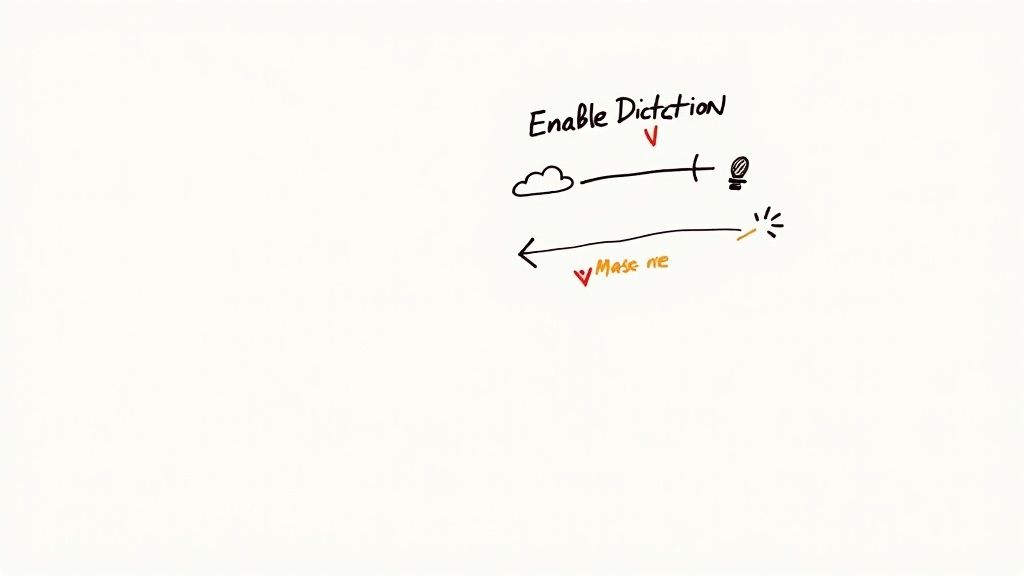
Before you can start talking instead of typing, you first have to make sure the voice to text feature is actually turned on. It usually is by default, but if the little microphone icon is missing from your keyboard, a quick trip into your iPhone's settings will sort it out.
First, pop open the Settings app. From there, head into General and then scroll down a bit until you see Keyboard. This is command central for all your text input options, and it’s where we’ll find the dictation switch.
Once you're in the Keyboard menu, just scroll all the way to the bottom. You’ll find a toggle for Enable Dictation. Give that a tap.
When you flip the switch, your iPhone will ask for confirmation, explaining that some of your voice input may be sent to Apple to be processed. Go ahead and tap Enable Dictation on the pop-up to confirm. Just like that, you're ready to go.
Right below the main toggle, you'll also spot Dictation Languages. This is a super useful setting if you're bilingual or just need to dictate in another language occasionally. You can select multiple languages here, and the iPhone will be ready to transcribe whichever one you're speaking.
A quick tip: Newer iPhones handle a lot of dictation processing right on the device for many common languages. This is a huge win for privacy and means you can often use dictation even without an internet connection.
This on-device processing is fantastic because your words don't have to be sent to a server. Your iPhone automatically uses this method for supported languages whenever it can. If you're curious, you can see which of your chosen languages support on-device transcription directly in the Dictation Languages menu.
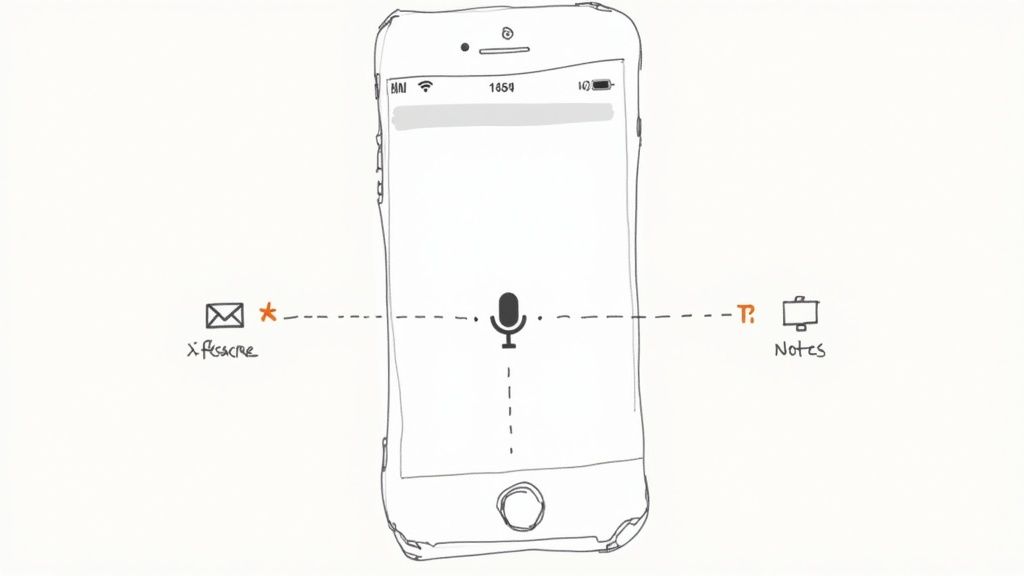
Alright, you've got dictation turned on. Now for the fun part: actually using it. The beauty of voice to text on iPhone is that it works almost everywhere. Think Messages, Notes, Mail, or even third-party apps like Instagram—if you can type in it, you can probably dictate in it.
Look for the little microphone icon on the keyboard, usually down by the space bar. Tap it, and the keyboard will morph into an animated sound wave. That's your cue—your iPhone is listening.
Let's put this into a real-world context. Picture yourself needing to fire off a quick but professional email. Instead of thumb-typing your way through it, you can just speak your thoughts.
Open a new email, hit that microphone icon, and start talking. But what about making it look polished with proper punctuation and line breaks? That’s where voice commands come in. They’re the secret to making your dictated text look like you typed it carefully.
For instance, you could say:
"Hi team comma new paragraph please confirm you have received the latest project brief period I have attached the document for your review period new paragraph let me know if you have any questions exclamation point"
And just like that, you get a perfectly formatted email without touching the keyboard. This works just as well for text messages. You can even drop in an emoji by saying something like "happy face emoji."
Getting the hang of a few key voice commands is what really takes your dictation game to the next level. We're talking more than just periods and commas; you can control capitalization, start lists, and add special characters. The trick is to speak clearly and at a normal, conversational speed.
To help you get started, here's a quick-reference guide to the most useful punctuation and formatting commands you can use while dictating on your iPhone.
| To Do This | Say This Command |
|---|---|
| End a sentence | "period" or "question mark" |
| Start a new line | "new line" |
| Start a new paragraph | "new paragraph" |
| Capitalize a word | "cap [word]" (e.g., "cap Apple") |
| Capitalize a phrase | "all caps [phrase]" (e.g., "all caps ASAP") |
| Add a quote | "open quote" and "close quote" |
| Insert an emoji | "[emoji name] emoji" (e.g., "winking face emoji") |
Once you start weaving these commands into your speech naturally, you'll see how powerful dictation can be.
Creating a quick to-do list in Notes becomes as simple as dictating an item and saying "new line" to move to the next. What used to be a tedious typing task is now done in seconds.
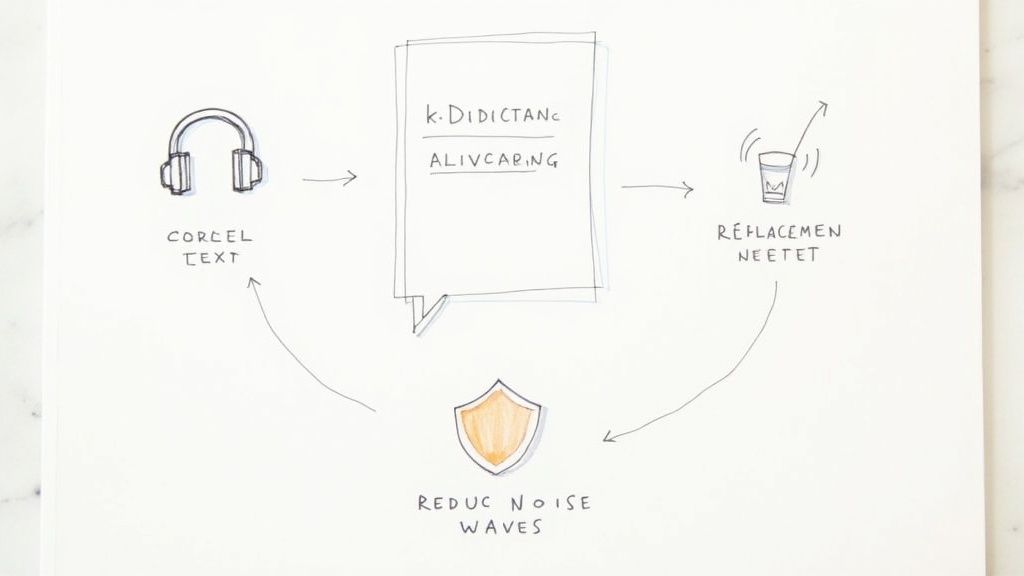
Once you've got the basics of voice to text on iPhone down, you can start making small tweaks that bring huge improvements. With a few smart adjustments, you can really boost your dictation accuracy and speed, turning a cool feature into an indispensable tool. It really just comes down to teaching your iPhone your specific speaking patterns and the unique words you use all the time.
A fantastic way to do this is by setting up Text Replacements. This feature is an absolute game-changer for names, technical terms, or phrases that dictation just seems to mangle every single time. Think about your work email, a tricky street name, or any industry jargon you use daily. Instead of fighting with the phone to get it right, just create a simple shortcut.
For example, I got tired of dictating my full email address, so I created the shortcut "myemail." Now, when I say "myemail," the correct address just pops right in. It’s a huge time-saver and gets rid of a common point of frustration.
Even the best dictation setup isn't perfect, and mistakes will happen. The real skill is learning to fix them without breaking your stride. You don't have to stop talking and start typing; you can actually correct errors with your voice.
If your iPhone botches a word, just say, "Correct [the wrong word]" to highlight it, then speak the correct one. For a more direct fix, you can say, "Replace [old phrase] with [new phrase]." This lets you swap out entire chunks of text in one go, which is great for keeping your thoughts on track.
It takes a little practice, but once you get the hang of voice-based editing, you’ll find yourself fixing mistakes faster than you could by typing. It completely changes the dictation experience from a passive transcription to an active conversation with your device.
Dictating in a quiet office is easy. But what about a loud coffee shop or in the car? Background noise is probably the biggest enemy of accurate transcription. Luckily, there are a few simple things you can do to make sure your voice cuts through the noise.
Using headphones with a built-in mic is the single best thing you can do. It moves the microphone right next to your mouth, which helps isolate your voice from all the chaos around you. Honestly, even the standard Apple EarPods make a massive difference.
Here are a few other habits that help when you're dictating on the move:
By making these small adjustments, you can turn your iPhone's voice-to-text into a reliable tool you can count on, no matter where you are.
https://www.youtube.com/embed/HTT-lxgxnGQ
Even the most dependable tech has its off days, and your iPhone's voice-to-text is no exception. If you've run into frustrating lags, weirdly inaccurate transcriptions, or the microphone icon has simply vanished from your keyboard, don't panic. These are common hiccups, and the fixes are usually pretty straightforward.
Often, the simplest solution works best. A spotty Wi-Fi or cellular connection is a frequent offender, causing delays because your iPhone might be trying to reach Apple's servers to process what you're saying. A quick trick is to toggle Airplane Mode on and then off. This simple network reset can often get things working smoothly again in seconds.
Sometimes the keyboard itself is just having a moment. If dictation suddenly becomes unresponsive, resetting it can clear out any temporary glitches.
Don't worry, this won't delete any of your important data. It just clears the custom dictionary and learned typing habits, which can sometimes interfere with the dictation feature.
This is probably the most common issue people face. More often than not, the microphone icon is missing because dictation got switched off by mistake. First, go and double-check that Enable Dictation is still turned on in Settings > General > Keyboard.
If that setting is already on, the next place to look is your Screen Time restrictions. Someone (maybe even you, by accident!) might have limited it. To check, navigate to Settings > Screen Time > Content & Privacy Restrictions > Allowed Apps and make sure Siri & Dictation has the green light.
It's worth noting that as AI technology improves, these kinds of issues are becoming less and less common. This continuous improvement is a big reason the mobile voice-to-text market is expected to explode, growing from USD 22.2 billion to USD 183.5 billion by 2035. If you're curious about the tech's future, you can dive into this detailed market analysis.
Running through these quick checks will solve the vast majority of voice-to-text problems, getting you back to hands-free messaging in no time.
Even a feature as straightforward as iPhone dictation can have its quirks. If you've ever found yourself scratching your head over how it works, you're not alone. Let's clear up a few of the most common questions I hear.
Most of the time, yes. For the highest accuracy, your iPhone's standard dictation sends your voice to Apple's servers for processing, which naturally needs an internet connection.
But here's the good news: many newer iPhones support on-device dictation for popular languages. This is a game-changer because it works completely offline, keeping your data private and functioning perfectly without Wi-Fi or a cell signal. To see if your language is supported, just pop over to Settings > General > Keyboard.
This is one of my favorite tricks because it's so simple. Just say the name of the emoji you want, followed by the word "emoji."
For example, saying "winking face emoji" will give you a 😉, and "red heart emoji" will instantly drop a ❤️ into your message. It’s a surprisingly fast way to add some personality without ever touching the keyboard.
Dictating everything from commas to smiley faces is what really makes this feature powerful. It lets you craft a complete, expressive thought, all hands-free.
If you find the dictation option is disabled and you can't turn it on, the culprit is almost always Screen Time restrictions. Someone (maybe even you, a while back!) has likely limited access to Siri & Dictation.
Fixing it is easy. Head to Settings > Screen Time > Content & Privacy Restrictions > Allowed Apps. From there, just find "Siri & Dictation" and make sure the toggle is switched on.
For developers and businesses looking to build their own powerful transcription features, Lemonfox.ai provides a fast, accurate, and remarkably affordable Speech-To-Text API. You can transcribe audio for less than $0.17 per hour and even kick things off with a free trial at the Lemonfox.ai website.